
MNG Clinic user guide
How the dental clinic system works: what each screen does, who can do what, and how a normal day flows.
What MNG Clinic is
MNG Clinic is a simple system for a dental clinic. It keeps patients (encrypted), appointments, the tooth chart, treatment plans, invoices, and stock (products, suppliers, orders). It works in Romanian, English and Arabic (Arabic is shown right-to-left), on a phone or a computer.
- Daily workToday, Appointments, Timeline, Time off
- PatientsDetails, tooth chart, treatment plan, visit history
- MoneyInvoices, payments, price list, reports
- StockProducts, usage, supply requests, orders, suppliers
- SettingsThe clinic's team, its consent and letter wording, and privacy (GDPR)
- Patient portalPatients see appointments and invoices and ask for a time
How it fits together
The web app is not tied to one server. You add the address of a clinic server, log in, and the clinic appears under Your clinics. A doctor who works at two clinics adds both. Each server is self-contained: it holds the login, permissions, encryption, e-mails and reminders. One server can hold several clinics (branches of one practice); a patient belongs to the clinics they are assigned to, and a clinic sees only its own patients, but each clinic has its own team, schedule, invoices, stock and products (one clinic never sees or changes another's); suppliers are the clinic's own or shared by the owner with all clinics.
Getting started
Connect to a clinic and log in
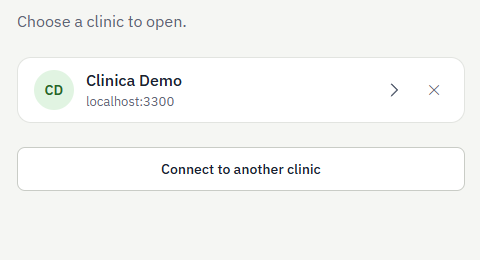
Open the app. Your clinics lists every server you have added; choose one, or press Connect to another clinic and enter its address. If you opened the app from the clinic server's own address, that clinic is already there. With only one clinic on your device the app skips this list and opens that clinic's login directly; to reach the list (for example to add a second clinic) use Your clinics at the top of the login screen or in the app's side menu.
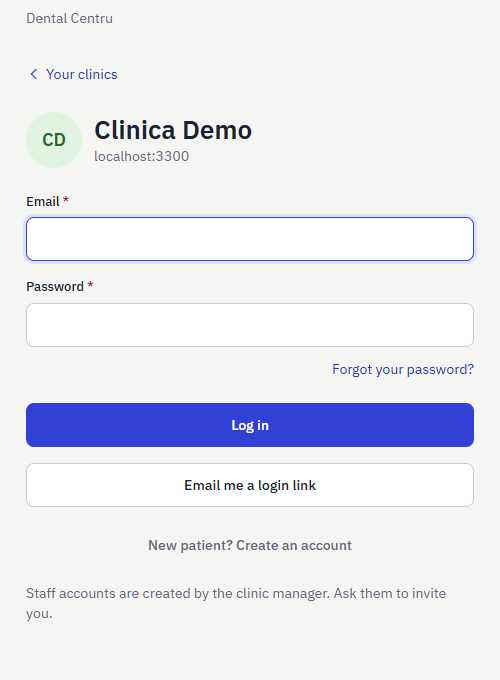
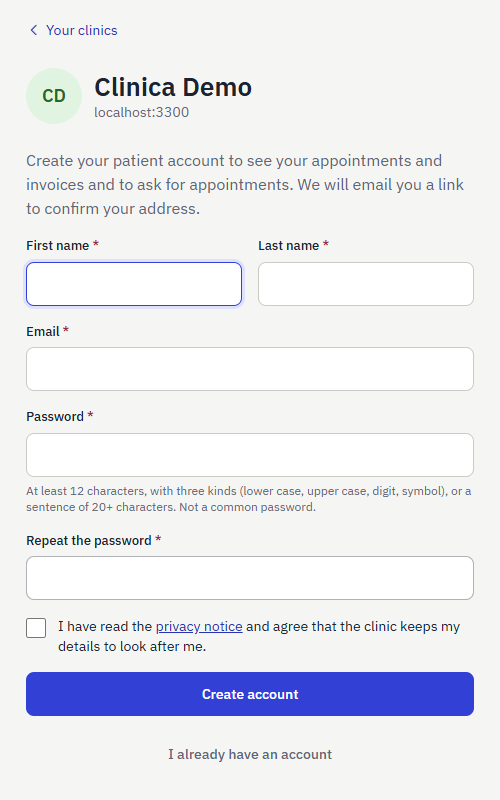
Enter your e-mail and password and press Log in. There is one login for everyone, staff and patients alike; someone who is both lands on the staff side (a patient with a staff role finds a Staff board link at the top of the patient portal, and staff who are also patients find a My patient portal link in the side menu, above User guide; the first time, pressing it creates their own patient file, or joins the one the clinic already has with the same e-mail). Staff cannot create their own account: new staff receive an invitation e-mail from a clinic manager and set their own password from the link. Patients create their own account with New patient? Create an account: enter name, e-mail and a password, then open the link we e-mail to confirm the address. If the clinic already has your file with the same e-mail, your account is joined to it. Forgot your password? sends a reset link; resetting a password logs the person out of every device.
Email me a login link. On the login screen, Email me a login link sends a link to your address; open it and press Log in — no password needed. The link works once and expires after 15 minutes. To keep it from being abused, the answer is the same whether or not the address has an account, each account gets at most one link a minute and five an hour, and the requests from one device are limited. An account with two-step login still asks for its code.
Protection built in. A new password needs at least 12 characters with three kinds (lower case, upper case, digit, symbol) or a sentence of 20+ characters, and may not be a well-known password; the form says why one is refused. Five wrong passwords lock the account for a while. Under My account anyone can switch on two-step login (a 6-digit code from an authenticator app). Unknown e-mail and wrong password show the same message on purpose.
Menus, search and language
Screens keep themselves up to date: what a colleague changes (an appointment on the timeline, a booking) appears within a second or two, without reloading. The left menu shows only what your role may use: Today, Appointments, Timeline, Time off, Patients, Billing, Stock, Reports, Settings. The top box (Ctrl+K) finds a patient or an action quickly. If your server holds several clinics, switch clinic at the top of the menu; you stay on the same page (for example Appointments) in the other clinic. The language selector (Română, English, العربية) is at the bottom of the menu and on the login screen.
Light and dark. The theme selector next to the language selector switches between Automatic (follows your device), Light and Dark. The choice is kept on that device only.
Notifications. The bell at the top shows what is new for you, and a click opens what changed. Who gets what: a new appointment goes to reception, the managers and the doctor it is booked with (not to the person who booked it); a moved or cancelled appointment too, and to the patient; when a patient cancels, reception and the doctor are told; a patient's request for a time goes to reception and the doctor they picked; time off requests go to the managers, and the decision to the person who asked; a supply request goes to whoever approves supplies, and the answer (approved, declined, received) to the person who asked; low stock goes to those who manage stock the moment a product falls to its minimum; when a patient keeps a moved appointment (from the portal or the e-mail link), reception and the doctor see it too. Patients are told about their own appointments (booked, moved, cancelled), a request answered, a follow-up to book, a finished visit with its record, a new invoice and a payment. Show alerts when this tab is in the background in the bell turns on desktop alerts.
On a phone
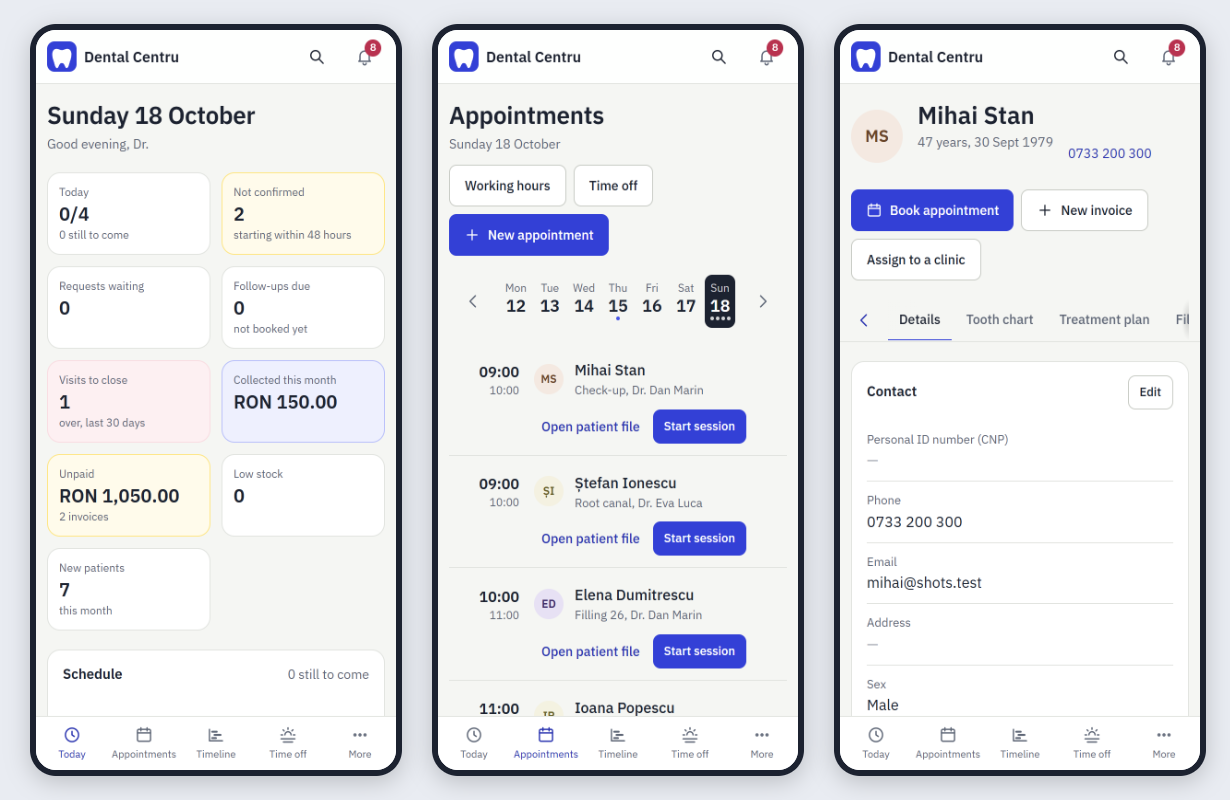
The app is built for phones as well as desktops. The menu becomes the bar at the bottom (Today, Appointments, Timeline, Time off, More), and the buttons of each visit sit under the patient's name. Wide tables and tab rows scroll sideways, with a soft fade at the edge where more is hidden. On a large screen the pages use the full width, and the Timeline and the calendar use the full height.
Users, roles and permissions
Three ideas decide what a person can do:
- Roles are fixed: Administrator, Doctor, Assistant, Reception and Lab operator (someone at an outside lab or imaging centre, who only sees the orders sent to their lab and uploads results).
- User types bundle roles. The server starts with the four types below, one for each role, which are the same in every clinic: the server owner adds or changes them under Owner dashboard → Staff → User types.
- Extra roles and single permissions can be added to one person on top of their type.
The four roles
- AdministratorRuns the clinic: users, everyone's working hours, time-off approval, every report, billing and stock.
- DoctorOwn schedule and working hours, medical data, visit sessions, treatment plans, own cancellations, own reports, may use and request supplies.
- AssistantPatients and appointments, reads medical data, manages stock, products and suppliers, approves supply requests.
- ReceptionRegisters patients, books and cancels any appointment, issues invoices and records payments. Never sees medical data.
The server owner (the person who created the server) can do everything and is the only one who can switch a whole account off. The owner can also work as a doctor: in Settings → Team → Users, Add myself to this team (or Edit on the own row) and choose the Doctor type; the owner then appears in the list of doctors patients choose from, and can change it back at any time. Nobody else can change their own access. Patients are not staff: they have a separate portal (see below).
Default user types
| User type | Roles |
|---|---|
| Doctor | Doctor |
| Manager | Administrator |
| Assistant | Assistant |
| Front desk | Reception |
| Lab operator | Lab operator |
A person's roles are their type's roles plus any extra roles an administrator adds. Permissions add up across roles.
What each role may do
| What the person can do | Administrator | Doctor | Assistant | Reception | Lab operator |
|---|---|---|---|---|---|
| Appointments | |||||
| See appointments and schedules | ✓ | ✓ | ✓ | ✓ | – |
| Book and move appointments | ✓ | ✓ | ✓ | ✓ | – |
| Cancel any appointment | ✓ | – | – | ✓ | – |
| Cancel own appointments | – | ✓ | – | – | – |
| Schedule and time off | |||||
| Set anyone's working hours | ✓ | – | – | – | – |
| Set own working hours | – | ✓ | – | – | – |
| Ask for own time off | ✓ | ✓ | ✓ | ✓ | – |
| Approve and add time off | ✓ | – | – | – | – |
| Patients | |||||
| See patients | ✓ | ✓ | ✓ | ✓ | – |
| Add and edit patients | ✓ | ✓ | ✓ | ✓ | – |
| See medical data (allergies, notes, teeth) | ✓ | ✓ | ✓ | – | – |
| Edit medical data | ✓ | ✓ | – | – | – |
| Run visit sessions (what was done, follow-ups) | ✓ | ✓ | – | – | – |
| See treatment plans | ✓ | ✓ | ✓ | ✓ | – |
| Write treatment plans | ✓ | ✓ | – | – | – |
| See patient files (x-rays, scans, documents) | ✓ | ✓ | ✓ | – | – |
| Upload patient files | ✓ | ✓ | ✓ | – | – |
| See consent forms, certificates and letters | ✓ | ✓ | ✓ | ✓ | – |
| Prepare documents, take signatures, record privacy choices | ✓ | ✓ | ✓ | ✓ | – |
| Lab and imaging | |||||
| See work sent to dental labs | ✓ | ✓ | ✓ | – | – |
| Prepare, send, receive and fit lab work; manage labs | ✓ | ✓ | ✓ | – | – |
| Lab operator: see orders sent to their lab and upload results | – | – | – | – | ✓ |
| Billing | |||||
| See invoices | ✓ | ✓ | – | ✓ | – |
| Issue invoices and record payments | ✓ | – | – | ✓ | – |
| Stock | |||||
| See stock | ✓ | ✓ | ✓ | ✓ | – |
| Record supplies used | ✓ | ✓ | ✓ | – | – |
| Request supplies | ✓ | ✓ | ✓ | – | – |
| Approve and receive supply requests | ✓ | – | ✓ | – | – |
| Manage stock, products, suppliers and orders | ✓ | – | ✓ | – | – |
| Reports | |||||
| See every report, for all doctors | ✓ | – | – | – | – |
| See reports with their own numbers | – | ✓ | – | – | – |
| Clinic and users | |||||
| Edit clinic details | ✓ | – | – | – | – |
| Manage users and their access | ✓ | – | – | – | – |
Allow or deny single permissions
In Settings → Team → Users → Edit an administrator picks the person's type and extra roles, and can set any single permission to As role, Allow or Deny. A deny always wins. Permissions the person does not get from their roles are shown struck through.
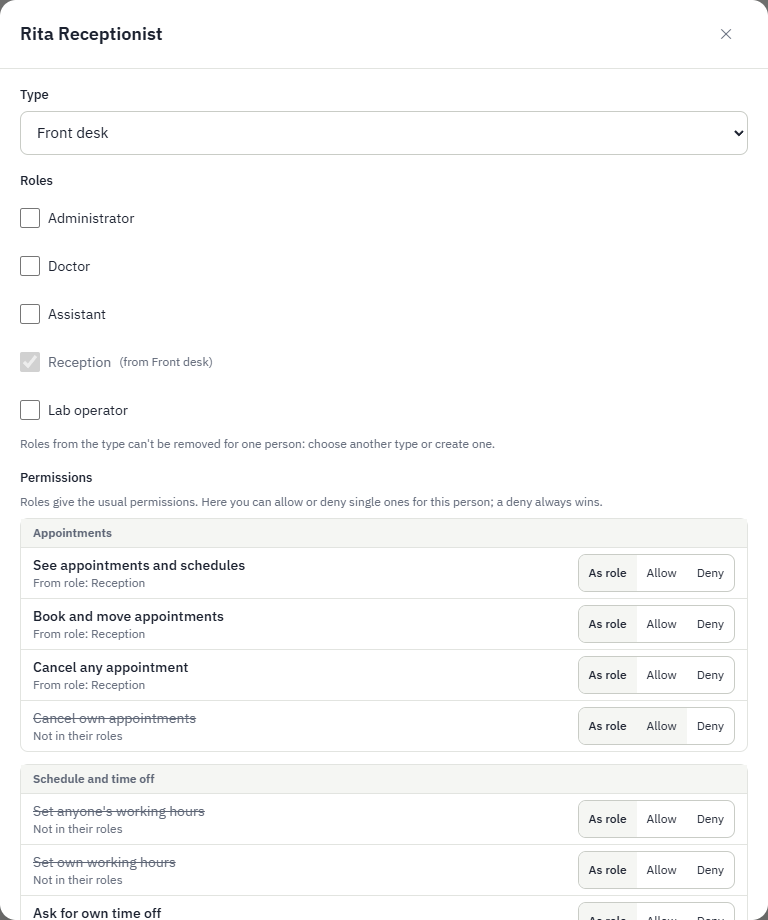
Safety rules. Nobody can change their own access. A clinic always keeps at least one administrator. Changing a user type first shows who gains or loses what, and only then applies it to everyone of that type (extra roles stay).
Today
The start screen shows the day at a glance.
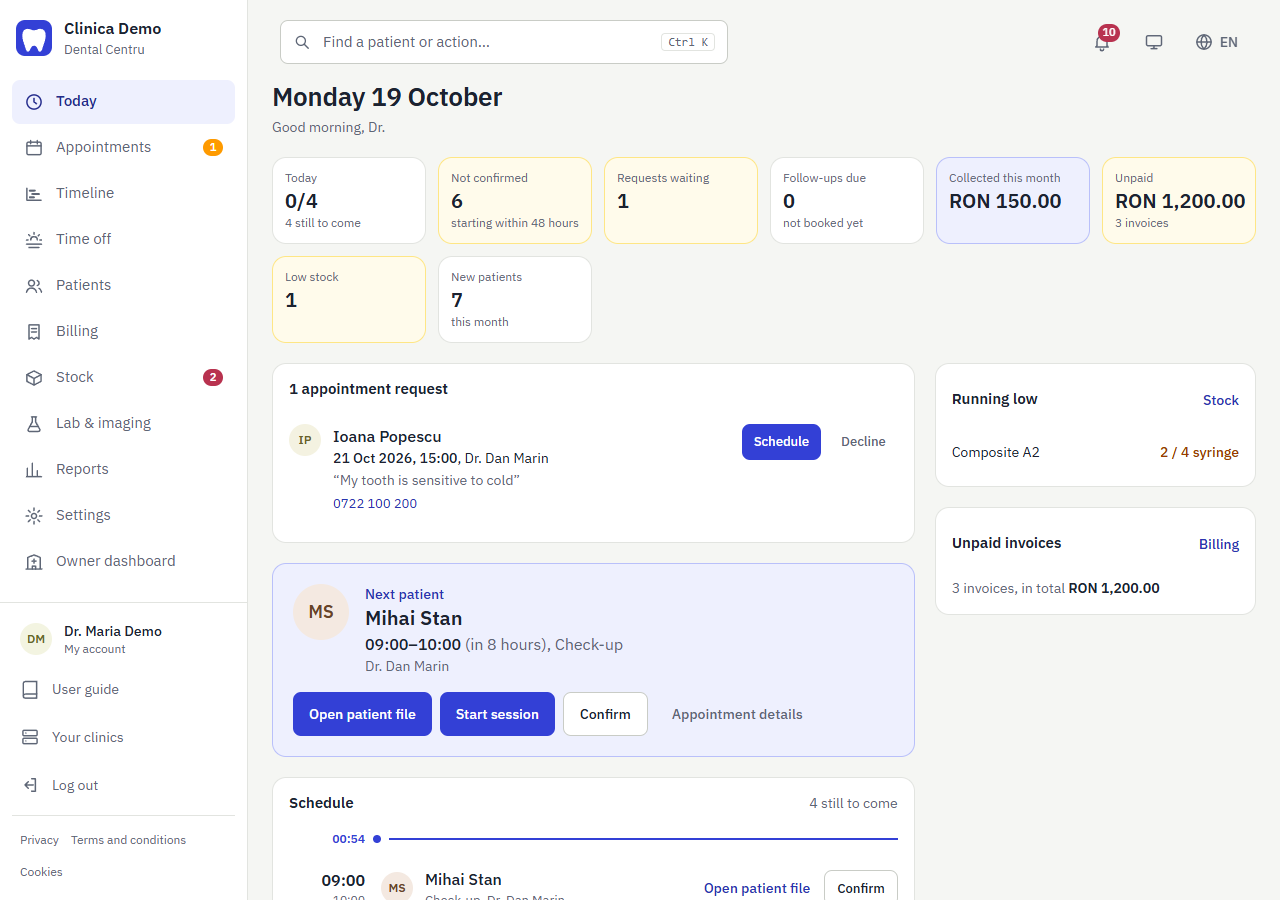
- The figures across the top: appointments Today (done out of all, and how many are still to come), Not confirmed (booked but unconfirmed, starting within 48 hours), Requests waiting, Follow-ups due, Visits to close (over, in the last 30 days), Collected this month (with the change on last month), Unpaid (what is still owed and how many invoices), Low stock and New patients this month. Amber tiles ask for attention; the tiles for money, stock and patients appear only for people whose role may see them, and some link to the right page.
- Schedule: today's appointments with time, patient and reason. Finished ones show Done; every row has an Open patient file link; upcoming ones show Start session for the doctor. Only mine limits the list to your own appointments.
- My patient portal: if you are also a patient of the clinic (a staff member can be), a link at the top opens your own appointments and records.
- Earlier visits still open: visits from the last month that are over but still marked as booked. Press Done or Did not come so the history and the reports are right.
- Follow-ups to book: patients a doctor asked to come back, marked Required or recommended, with the due date. Book opens a new appointment for that patient; Not needed removes it. Reception sees these without the doctor's clinical note.
- Appointment requests from patients appear here for reception to book or decline.
- Running low and Unpaid invoices link to Stock and Billing.
Appointments
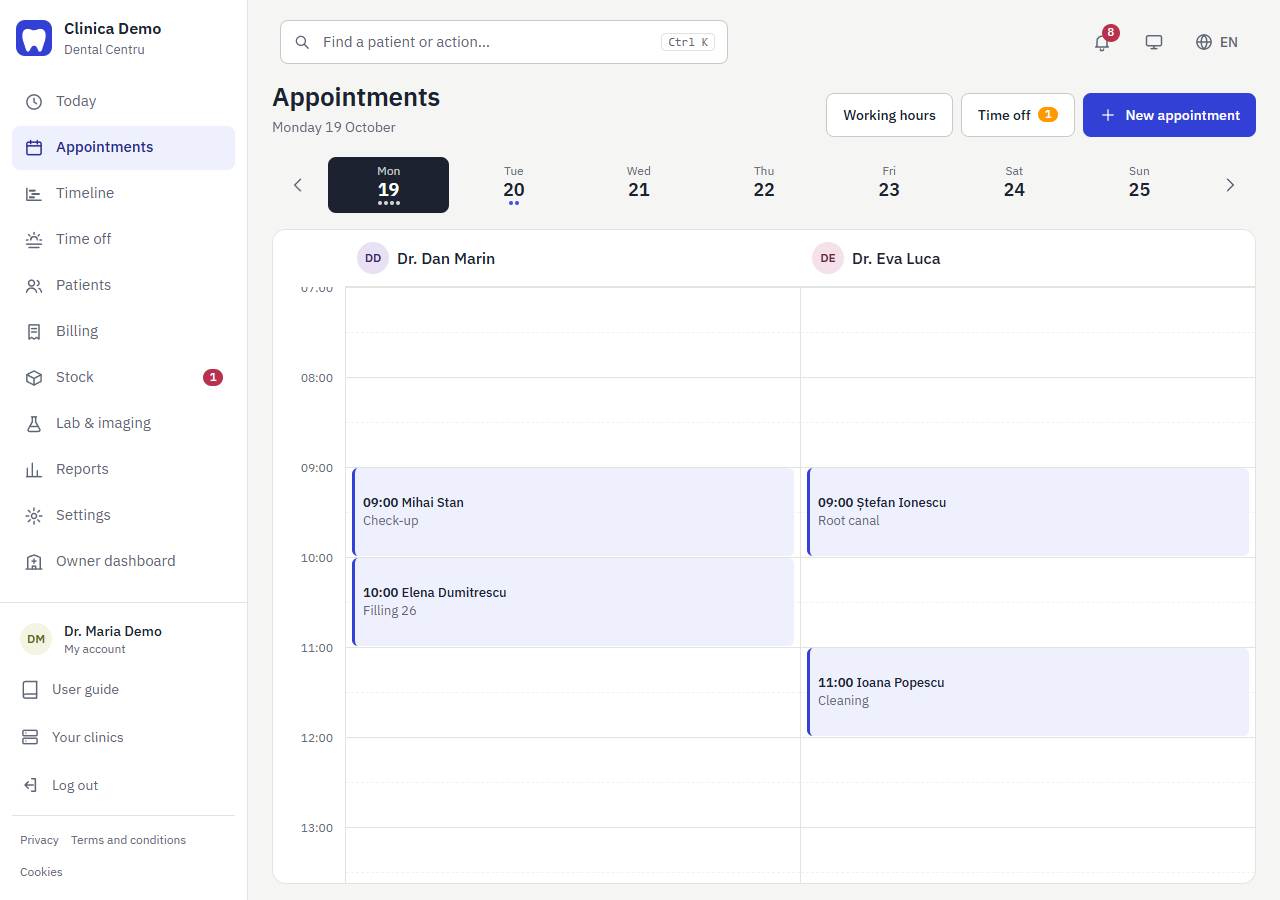
The calendar shows one day at a time with a week strip above it; there is one column per doctor. Dots under a day show how many appointments it holds. All doctors filters by doctor, Working hours sets when doctors work, and Time off opens days off.
Book an appointment
- Press New appointment (or Book appointment on a patient's page).
- Choose the patient and the doctor. Only doctors who work in this clinic can be chosen.
- Pick the date and start time. The app shows the doctor's free times as buttons; if none are left on that day it says so and offers Next free day, which moves to the first day (within two weeks) when that doctor has a free time. Tick Jump to the next day with a free time by itself to have it do this whenever you open the window; the choice is kept in this browser, and a date you type yourself, an existing appointment, a patient's request or a time clicked in the calendar is never moved.
- Choose the duration, add a reason and notes, and press Book appointment.
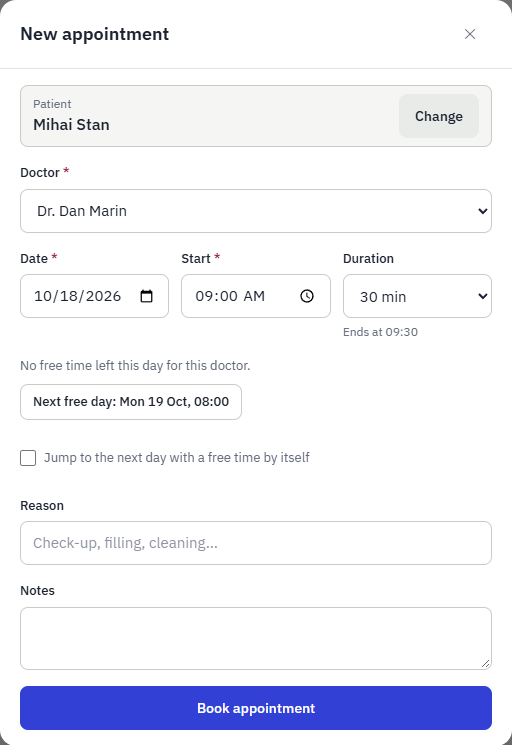
The server refuses a double booking and a time held by a patient's pending request. If the time is outside the doctor's working hours, on their requested or approved time off, or in the past, the app warns you and shows Book anyway. Use it only when you mean it, for example to enter a visit that already happened.
A visit whose session has been closed stays closed: it can no longer be set back to booked, marked Did not come or cancelled, because its record and invoice depend on it. Correct the record from the visit instead.
Change what happens to it
Click an appointment to open it. The buttons at the bottom are:
- Confirm: the patient is coming. The card turns green.
- Done: the visit took place.
- Did not come: no-show (counted in reports).
- Move: change time or hand it to another doctor.
- Cancel appointment: the patient is e-mailed. Reception and administrators cancel any appointment; doctors cancel only their own; assistants cannot cancel.
When an appointment is set to Confirmed, the patient is e-mailed once (if the patient has an e-mail address). Reminders are e-mailed to patients once. Working hours are set per doctor by an administrator (doctors can set their own).
Timeline
The staff timeline shows everyone on one time axis: appointments, working hours, time off (pink) and patients' pending requests. Choose Week, Month, 3 months or a custom range, filter staff, and zoom with Ctrl + mouse wheel (down to 5 minutes).
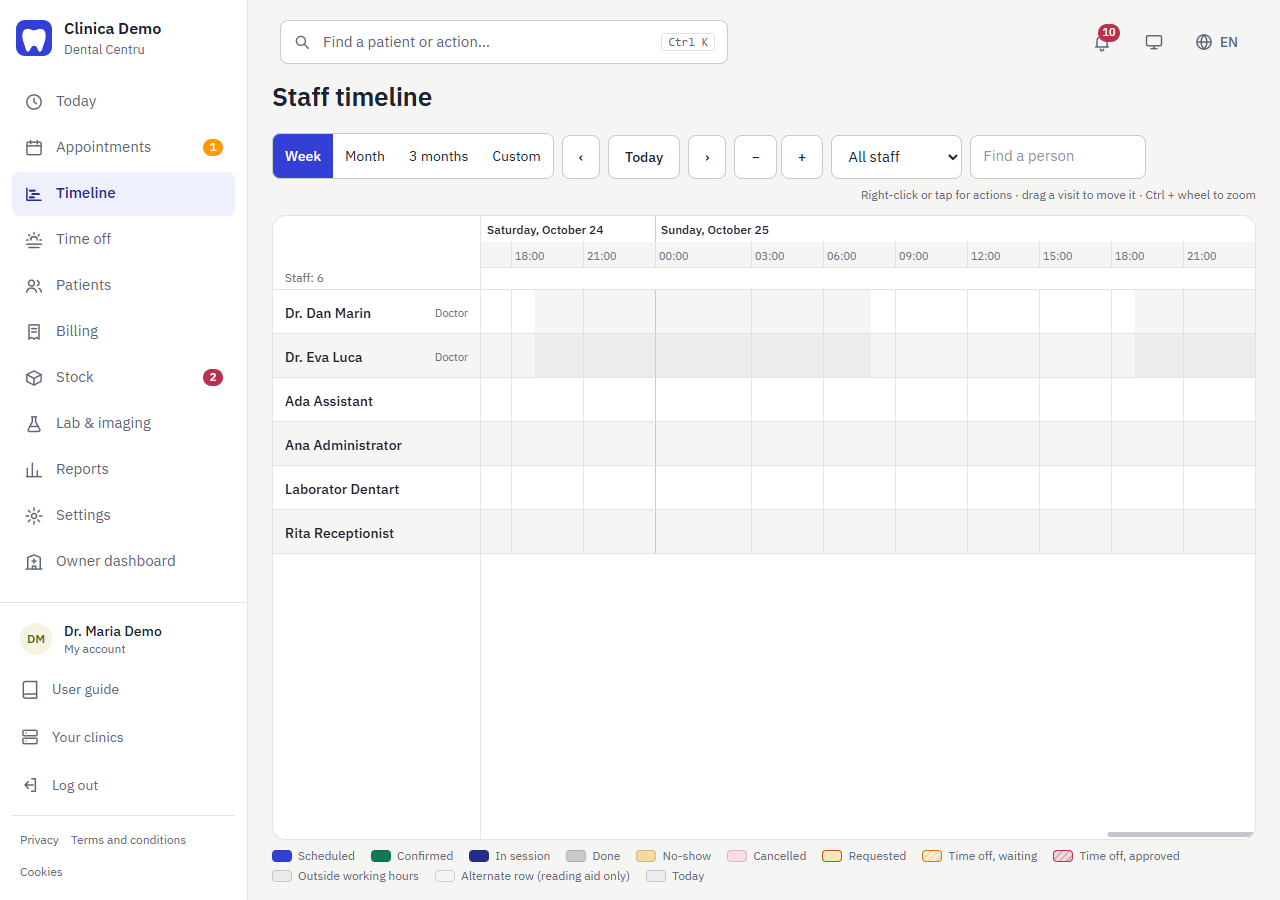
A legend under the timeline explains the colours: one for each appointment status (scheduled, confirmed, in session, done, no-show, cancelled), patient requests, and time off (waiting or approved). It also names the faint backgrounds: grey for hours outside the doctor's working hours, and a light tint for today. The alternating row stripes are listed too, as a reading aid with no meaning.
- Drag a visit to move it, or drag its edge to change its length. The server checks the doctor's hours, time off and other bookings before it accepts the move.
- Right-click (or tap) anything to see its actions.
- Scroll with the mouse wheel (or Shift + wheel sideways), drag an empty spot or the scrollbars, or swipe on a touch screen. More weeks load as you reach either end.
- People who may not see patients see the times but not the names.
Time off
Every staff member asks for their own days off under Time off. An administrator approves or declines, and the person is e-mailed. An administrator's own days off, and days an administrator adds for someone, are approved at once.
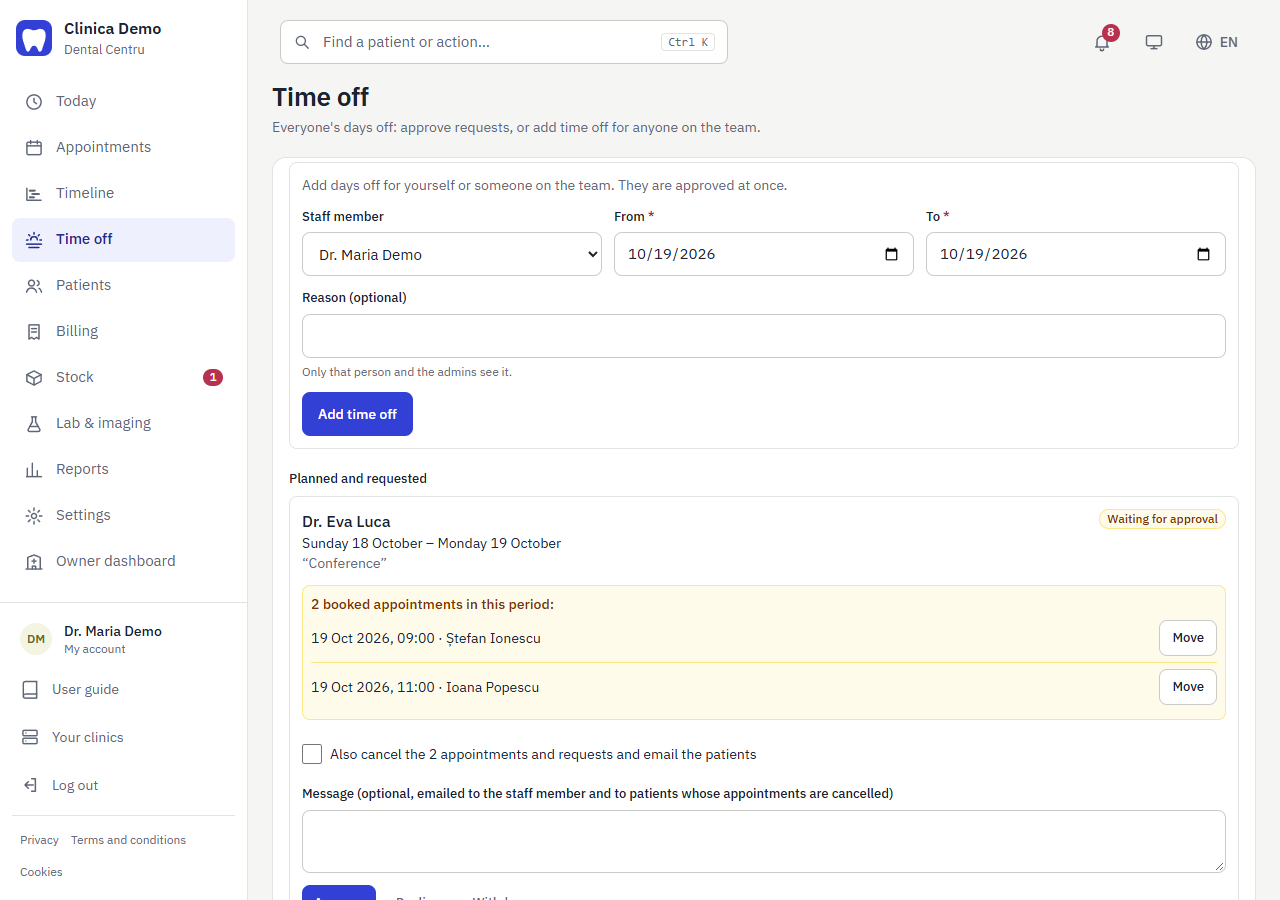
- For a doctor, pending days are already closed to patient requests and bookings, and the appointments that fall in that period are listed.
- Reception can move an affected appointment to another doctor; the patient is e-mailed and may cancel the change from the portal or the e-mail link (doing nothing keeps the change).
- Or the administrator cancels them all at once and the patients are e-mailed.
Patients
Find and add patients
Search by name (accents are ignored), phone, e-mail or personal ID number. New patient opens the form: name, date of birth, sex, phone, e-mail, personal ID (CNP), address, allergies and medical history. A second patient with the same ID number is refused. If the e-mail or phone matches a patient who is already registered (the same person twice, or a family sharing a phone), the app warns you and offers Add anyway; this also applies to New patient inside the booking dialog. If another clinic of the server already has a patient with the same e-mail and the same name, that file is assigned to your clinic instead of making a second one. If the e-mail matches but the name is different, the app warns you that the address already exists in another clinic and offers Link that file to this clinic or Create a separate file (for example when two people share an address). Reception can register a patient but cannot set medical data.
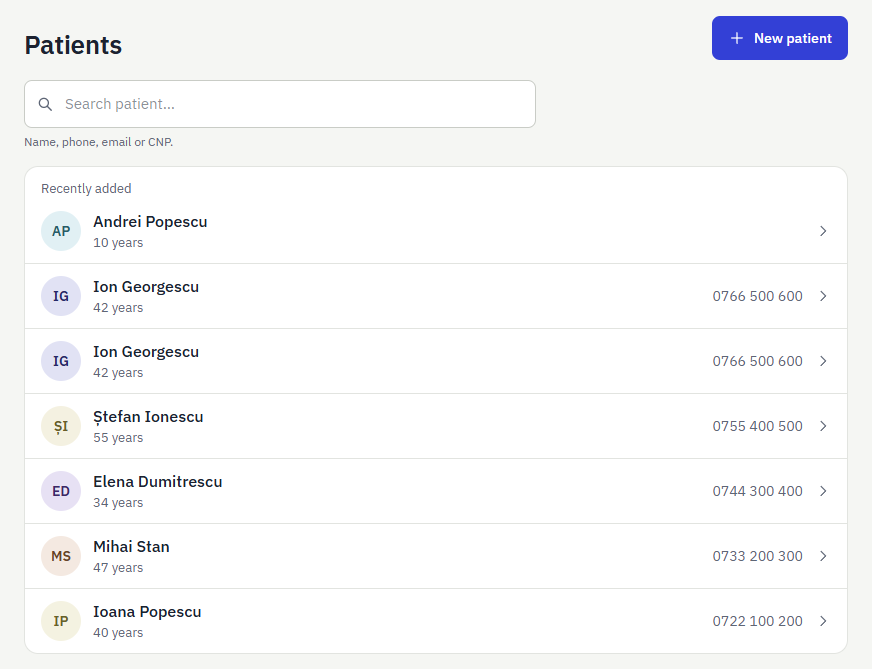
Everything about a patient is encrypted before it reaches the database, and searches use blind indexes, so nothing personal or medical is stored in plain text.
The patient's file
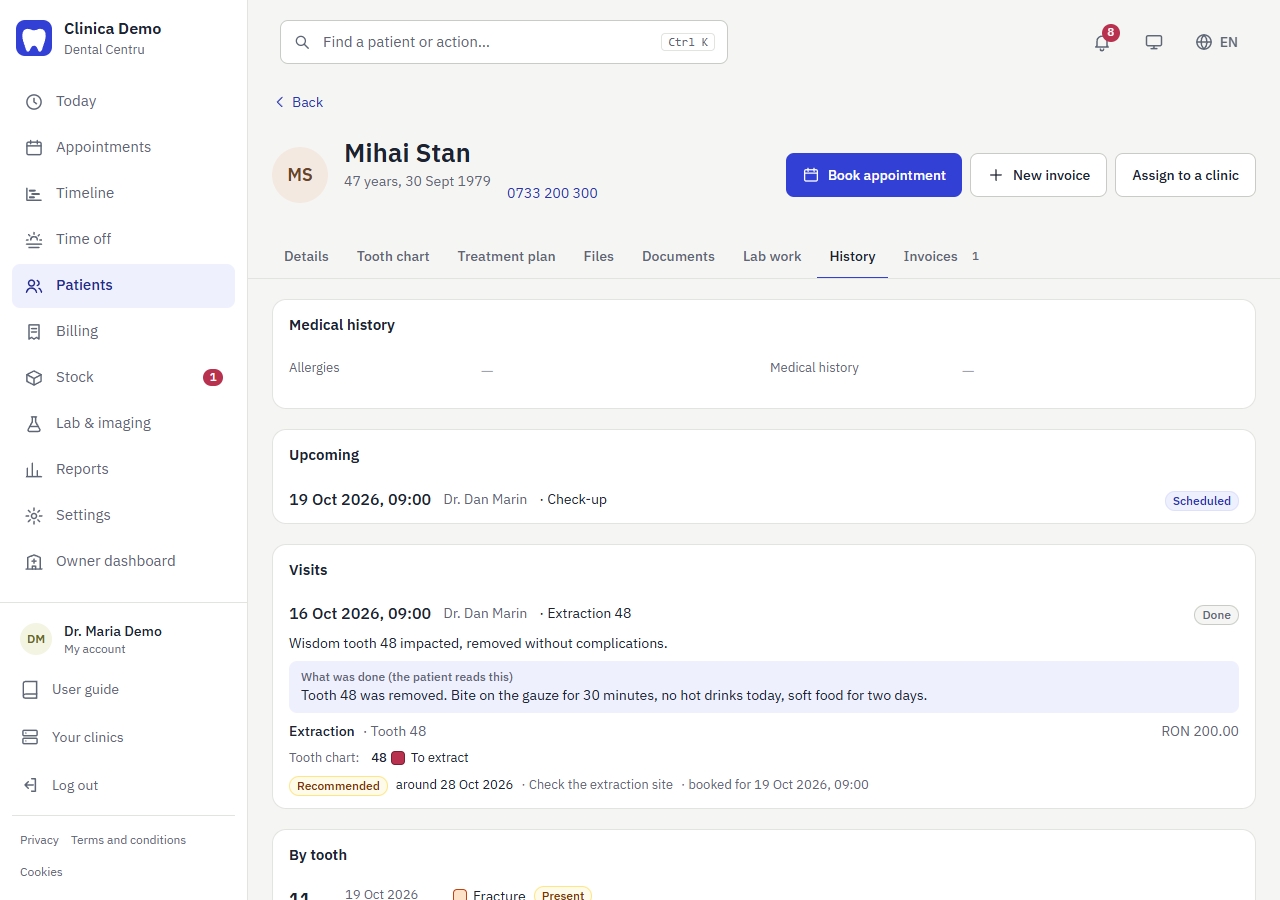
Each patient has a page with an allergy banner and tabs. The buttons at the top book an appointment or start an invoice for this patient.
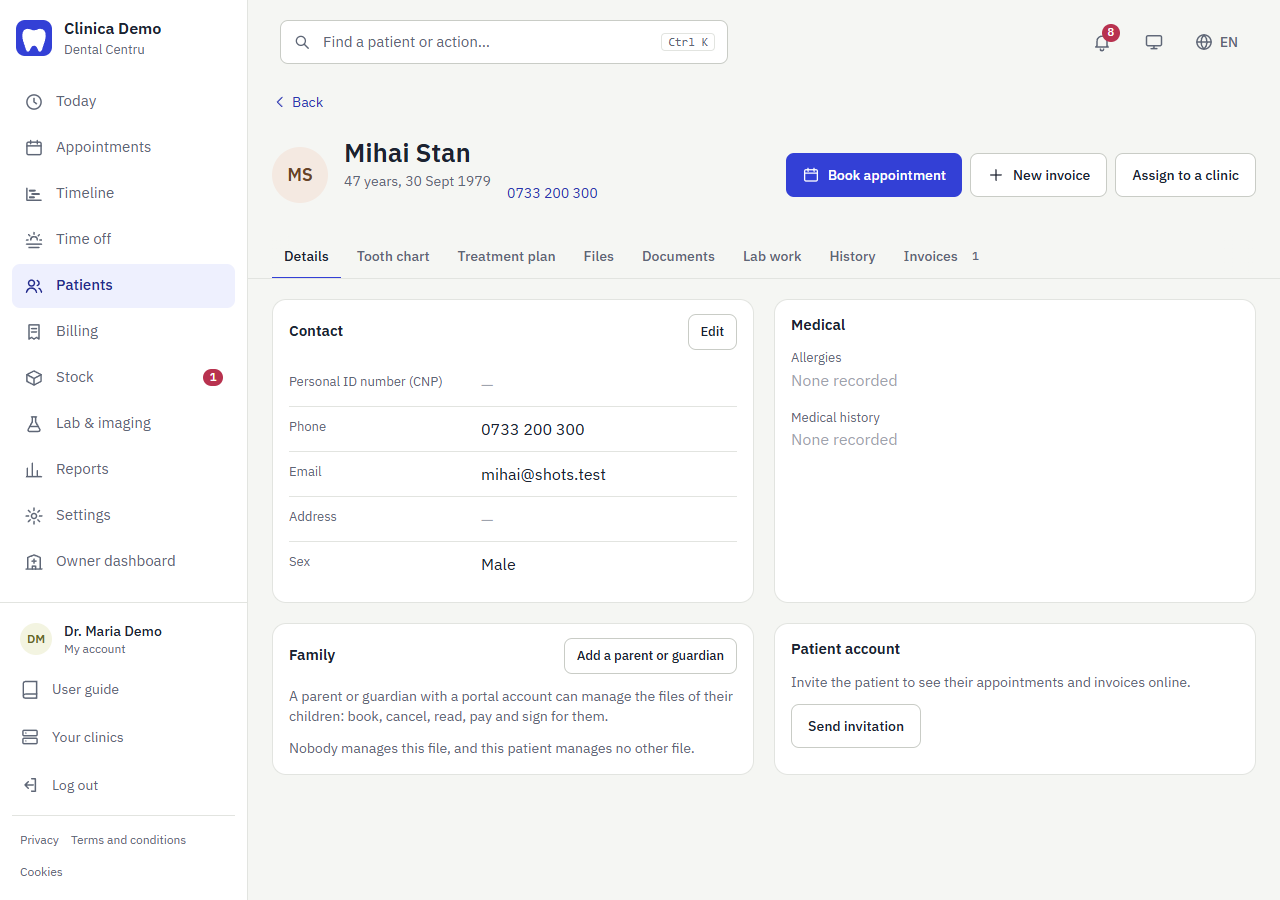
- Details: contact and medical data. Send invitation gives the patient an online account (the patient's e-mail is needed first).
- Tooth chart: see below.
- Treatment plan: the doctor's recommendations.
- Files: x-rays, photos, scans and documents.
- Documents: consent forms, certificates and letters (see below).
- History: every visit and what was done.
- Invoices: this patient's invoices.
Tooth chart
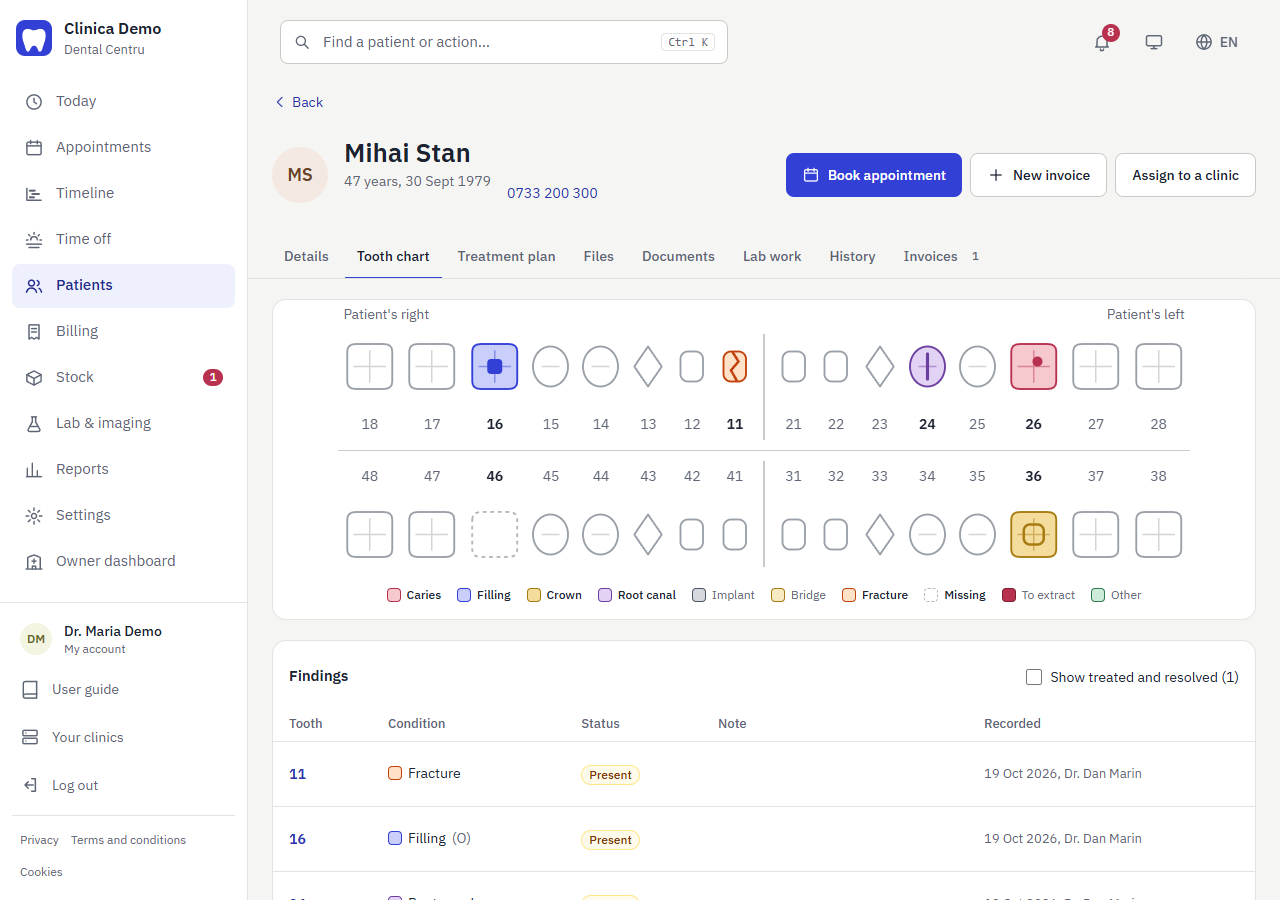
Teeth are numbered in the usual two-digit way and drawn as upper and lower rows. A tooth can hold any number of findings: healthy, caries, filling, crown, root canal, implant, bridge, fracture, missing, to extract, other. Each finding has surfaces, a note and a status: Present, Treated or Resolved. Findings are listed under the chart with who recorded them and when. Only clinical roles can see the chart.
Files
The Files tab keeps a patient's x-rays, photos, scans and documents. Press Add files and choose one or several: images, PDF, DICOM or ZIP, up to 200 MB each. Files are listed newest first with their type, size, who added them and when; press a name to download it, or Remove to delete it. The same Files of this visit box is in the visit session, so a file added during a visit is tied to that visit (the Files tab shows its date). Doctors, assistants and administrators can see and add files; whoever added a file, or an administrator, can remove it. A file of a visit can be shared with the patient: tick Share with the patient before adding it, or press Not shared in the Patient column later (press Shared to take it back). Shared files appear on the patient's visit page for download; nothing else is visible to the patient. Files are encrypted and stored on the server's own disk, outside the database, in a folder per clinic and patient, and survive restarts and updates.
Families: children and other files one account manages
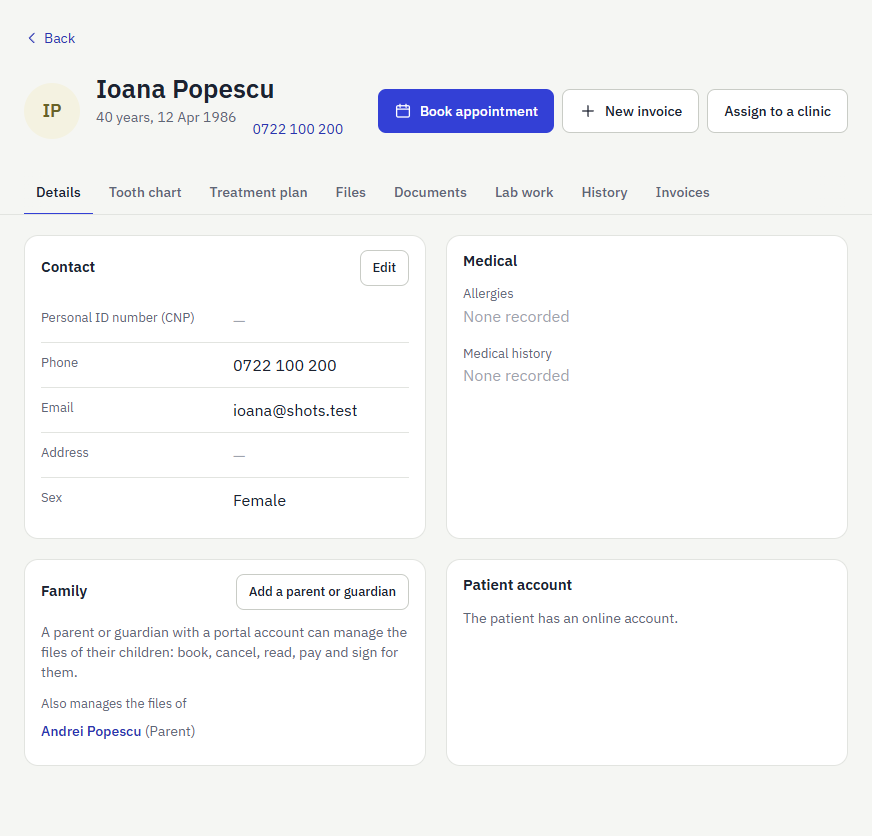
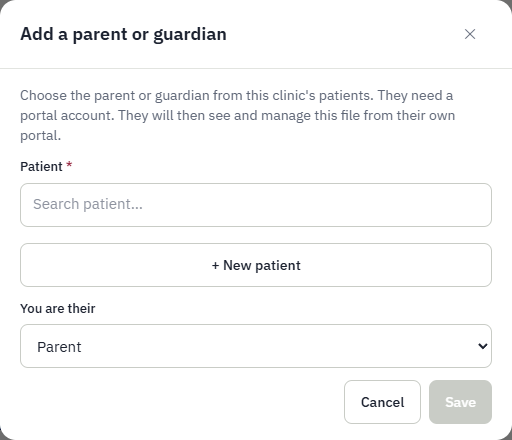
A parent or guardian can manage their children's files from one portal account. On the Details tab, the Family card shows who manages this file and whose files this patient's account manages. Add a parent or guardian links the file to the account of another patient of the clinic (who must already have a portal account) with a relation: parent, legal guardian or other carer. Remove unlinks. Parents can also add the child themselves from the portal (see below), which creates the file. The managing account books, cancels, reads the visit records, sees invoices, signs consent forms and downloads the data of the child in the portal. The child's reminders are e-mailed to the person who manages the file when the file has no e-mail of its own. Every link and unlink is written to the audit log.
Documents: consents, certificates and letters
The Documents tab keeps a patient's consent forms, certificates and medical letters. Press New document, choose a template (or a blank document) and read the text: the patient's name and date of birth, today's date, the clinic and your name are already filled in, and you can edit anything. Prepare for signature creates a consent, Create a certificate or letter. A consent opens at once to be signed on screen: the patient draws their signature with a finger, a pen or the mouse on the clinic's tablet or screen. If somebody else signs (a parent for a child), write their name and relation under Signed by someone else?. A consent can also wait: the patient finds it under Consent forms and letters in the portal and signs on their own phone. The signature is stored encrypted together with the exact text that was signed, so changing a template later never changes a signed document. Print prints any document, with its signature. A signed consent cannot be deleted: Withdraw consent keeps the copy on record, marked as withdrawn (the patient can withdraw from the portal too). Documents nobody signed can be deleted. Doctors, assistants, reception and administrators can prepare, read and print documents.
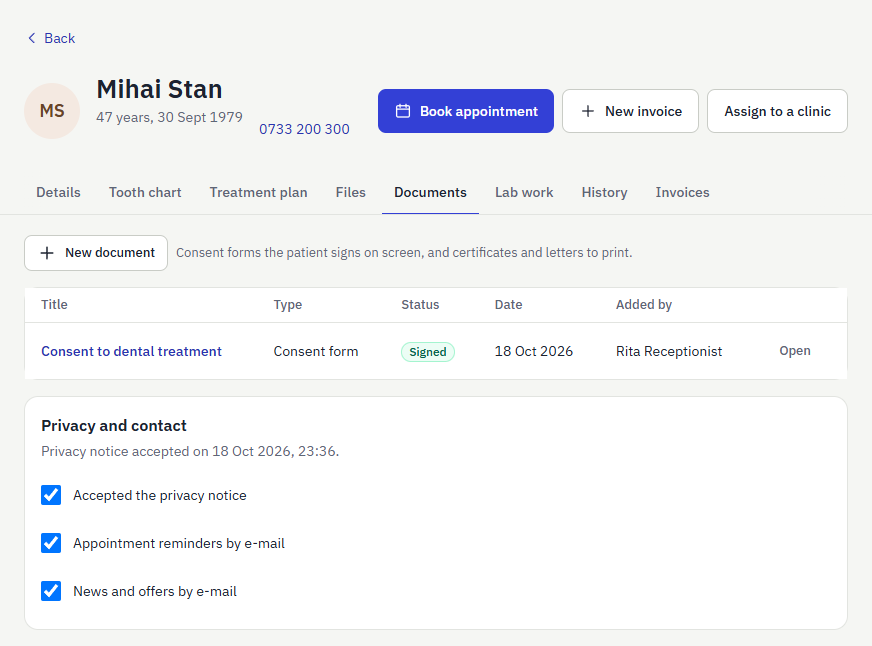
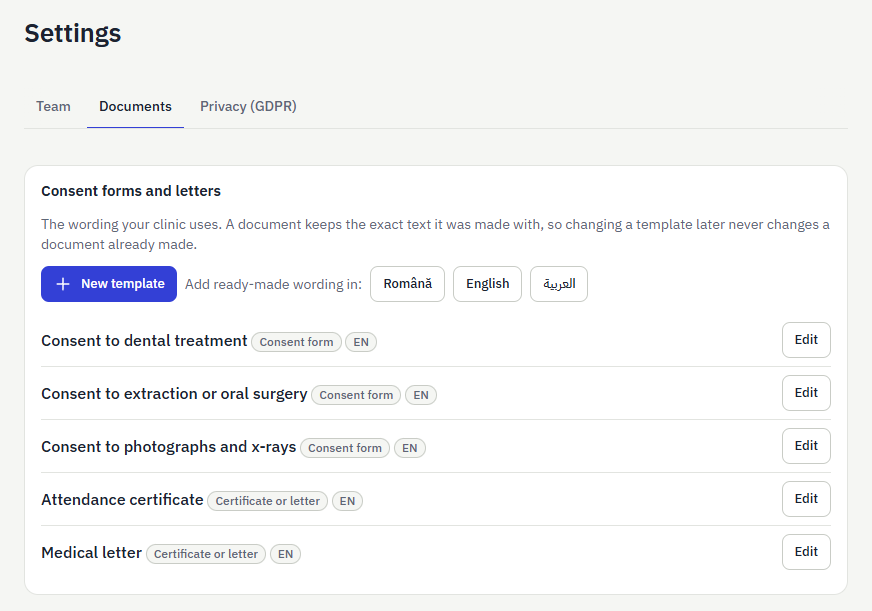
The wording comes from templates: an administrator opens Settings → Documents, adds ready-made wording in Romanian, English or Arabic (treatment consent, extraction or surgery, photographs and x-rays, attendance certificate, medical letter; your lawyer should read it) and edits it or writes their own. A template can use {{patient}} {{birthDate}} {{date}} {{clinic}} {{doctor}} (filled in when a document is prepared); a template no longer wanted can be switched off instead of deleted. When the clinic works under the GDPR the tab also shows Privacy and contact: whether the patient accepted the privacy notice and when, and their choices about reminders and news by e-mail; staff can record what a patient says in person.
A patient in several clinics
A patient belongs to the clinics they are assigned to, and a clinic sees, searches and works with only its own patients. New patient assigns the new file to the clinic you are in; a patient who asks a clinic for a visit in the portal is assigned to it; a patient who signs up on a server with a single clinic belongs to it. Archive takes the patient out of your clinic (their history stays) and archives the file only when no clinic has them any more. The patient's name and contact details are one shared file, but what each clinic recorded stays in that clinic: visits, files, invoices and plans. A clinic can only see what another clinic recorded when the patient allows it: open the Files tab, where From the patient's other clinics lists what has been shared with you (visit results and files, read only), and Ask to share files or Ask to share visit results sends the patient a request, with a notification in their portal. The card shows whether it is waiting, shared or declined. The server owner can also press Assign to a clinic on a patient's page to put an existing patient in another clinic of the server; that clinic then sees their file (but not what this clinic recorded, unless the patient shares it). Every assignment, request, answer, change of sharing and viewing is written to the audit log.
Treatment plan
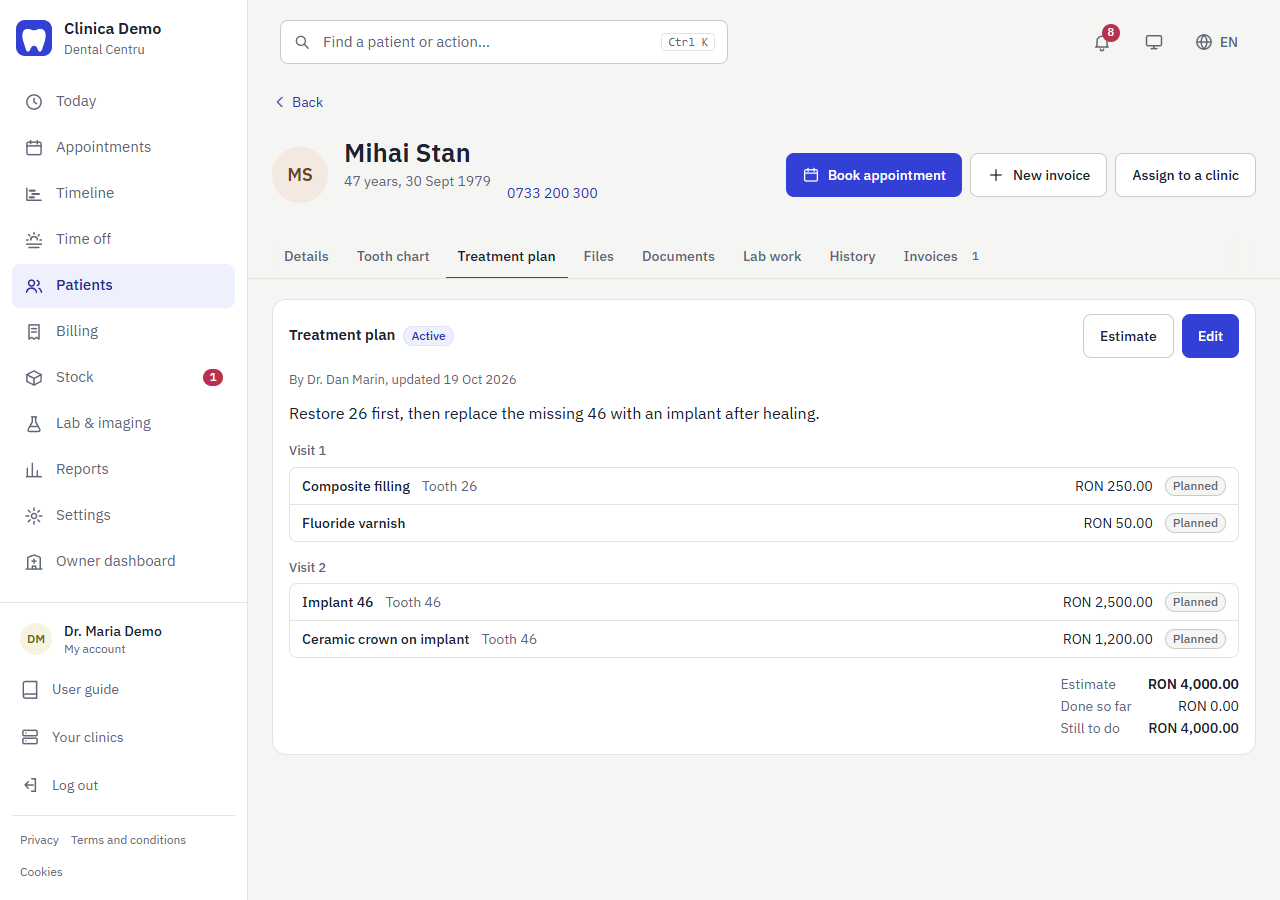
The doctor writes recommendations and a list of procedures with the tooth, price and visit number. The page shows the Estimate, what is done so far and what is still to do, and prints a patient estimate. Reception sees items and prices but not clinical notes. When a visit carries out a plan item, it is marked done.
Visit sessions and history
When the patient sits down, the doctor presses Start session (on Today or in the calendar; available for a visit today or earlier); nobody else changes that appointment meanwhile. Close session records what was done, the procedures (from the price list, with the tooth), tooth chart changes, and whether the patient should come back — Recommended or Required, around a date. A required follow-up e-mails the patient. The form has two texts: Notes for the clinic (private) and Report for the patient (what was investigated and the results), which the patient reads in the portal under History. A visit marked Done without a session can be recorded afterwards, and a closed session can be corrected. The History tab lists every visit with its record, the medical history and each tooth's story.
Billing
Reception and administrators issue invoices and record payments; doctors can read them.
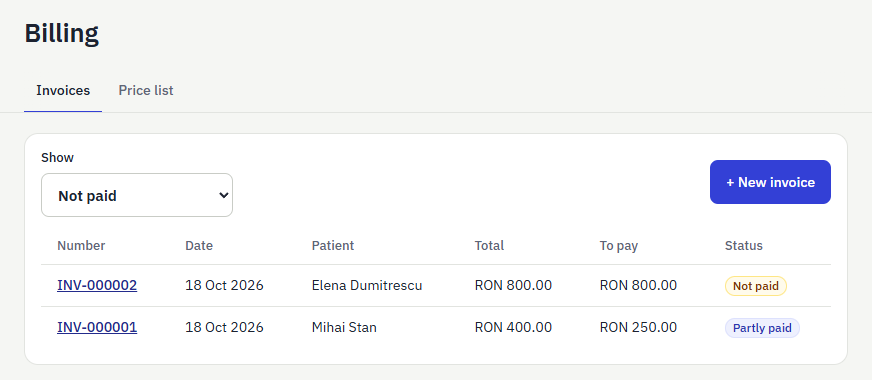
Issue an invoice
- Press New invoice in Billing, or on the patient's page.
- Choose the doctor the work counts for in reports (optional).
- Add lines from the price list or type a description, quantity and price.
- Check the total and press Issue invoice. It gets the next number (INV-000001, INV-000002…).
Open an invoice to record a payment (cash, card, transfer or other). Status moves from Not paid to Partly paid to Paid. On a patient's Invoices tab, Invoice done items bills the work done in visits and not invoiced yet, one invoice per doctor; the patient's Invoices tab shows how many items are waiting, and an invoice number there opens the invoice to print it or record a payment.
Price list
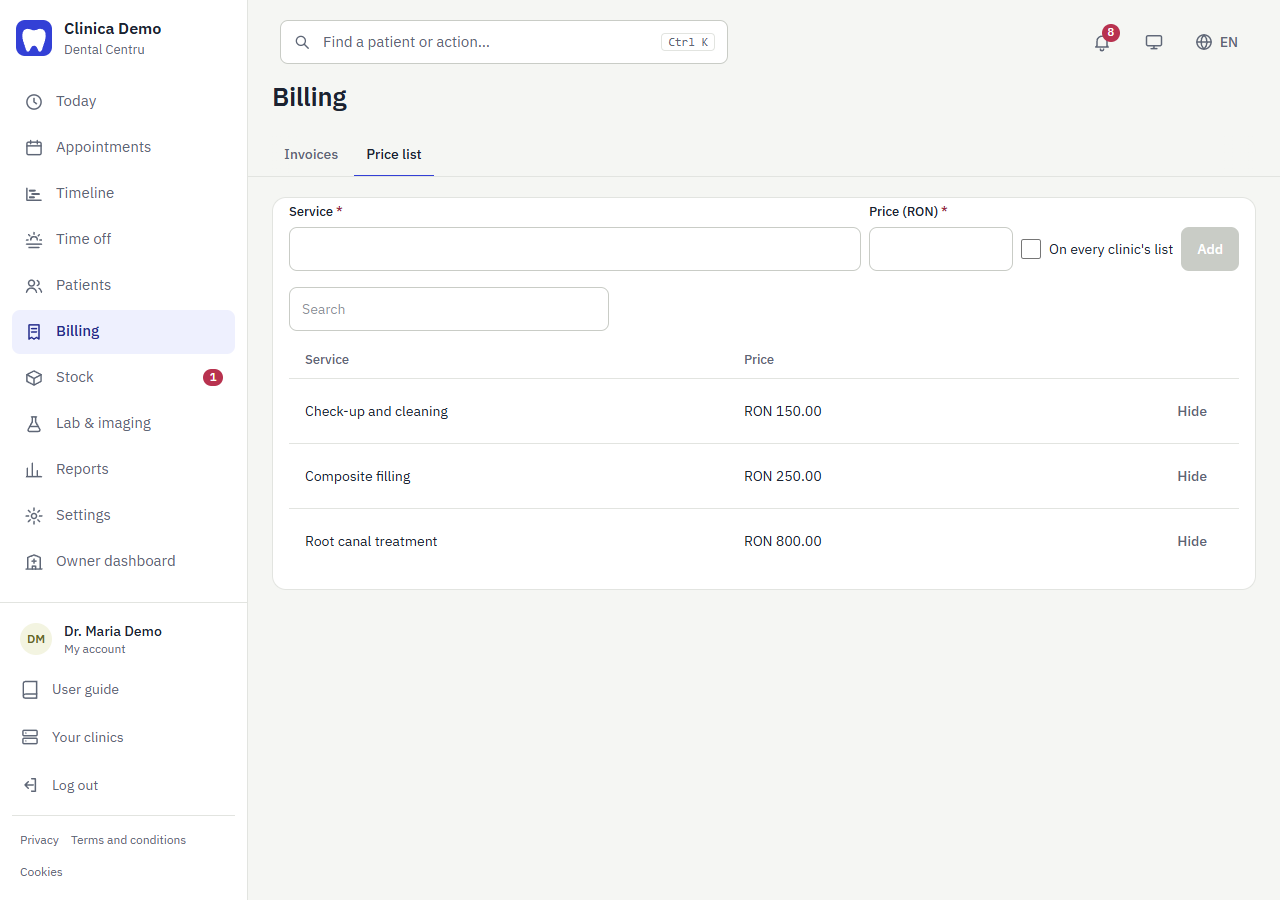
The Price list tab holds the services and prices used in invoices, treatment plans and visit records. Add a service with a name and price; Hide retires one without breaking old invoices. The server owner can tick On every clinic's list when adding a price: it then appears (marked Shared) on the price list of every clinic, which can use it on invoices, plans and visits but cannot change it. Only the owner edits or hides a shared price.
Stock
Each clinic keeps its own stock. The number badge in the menu counts products running low. The long lists (stock, supply requests, orders, history) show 25 rows at a time with Previous and Next, so a big clinic stays fast; stock can also be searched by name or code, and out-of-stock and low products come first.
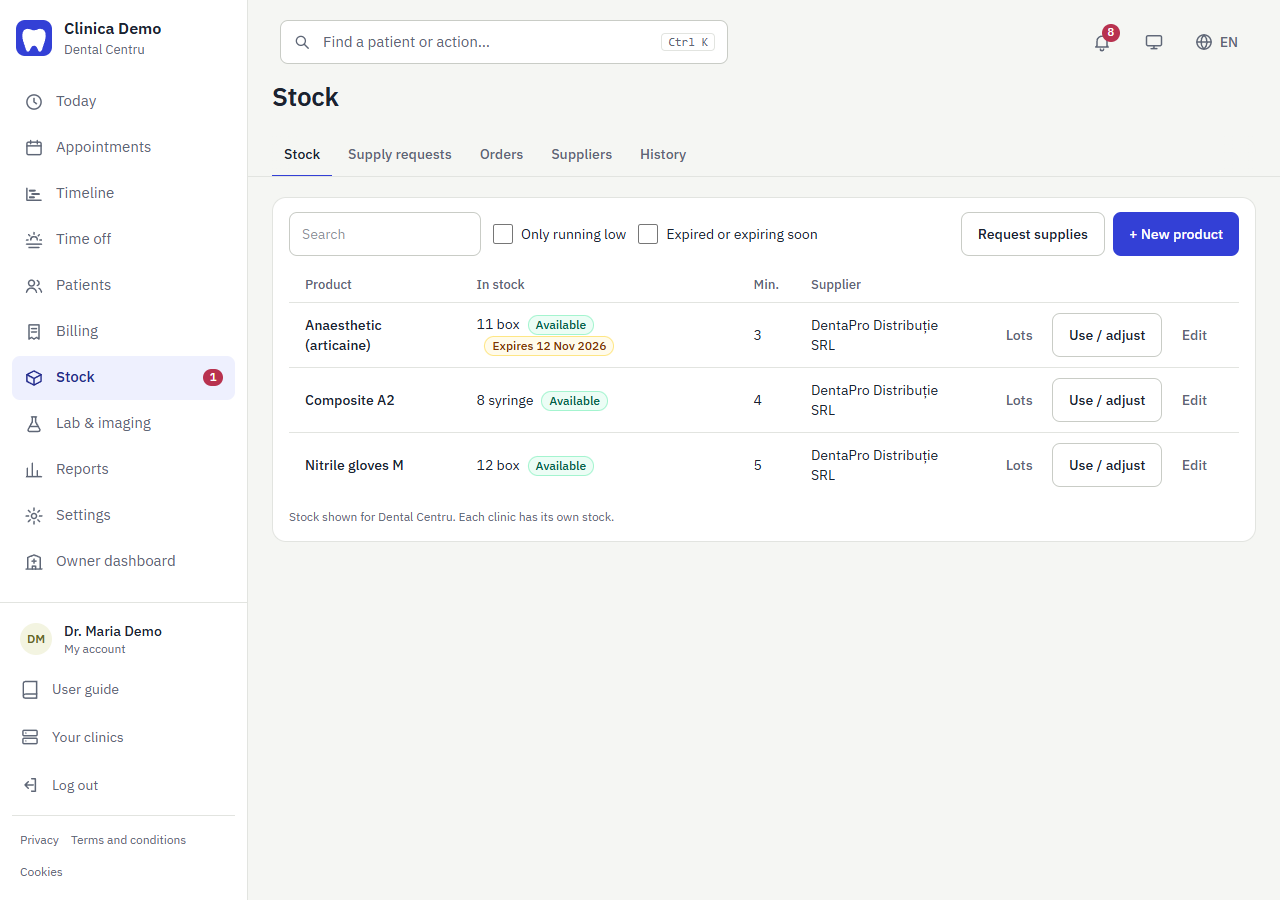
- Stock: each product with quantity, minimum, supplier and a Low or Available tag. Use / adjust records what was used or corrects a count; stock never goes below zero. New product and Edit are for whoever manages stock; a new product can start with In stock now, which is recorded as its first delivery (in the history).
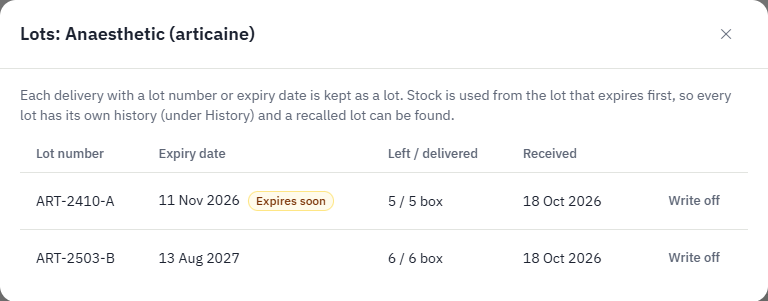
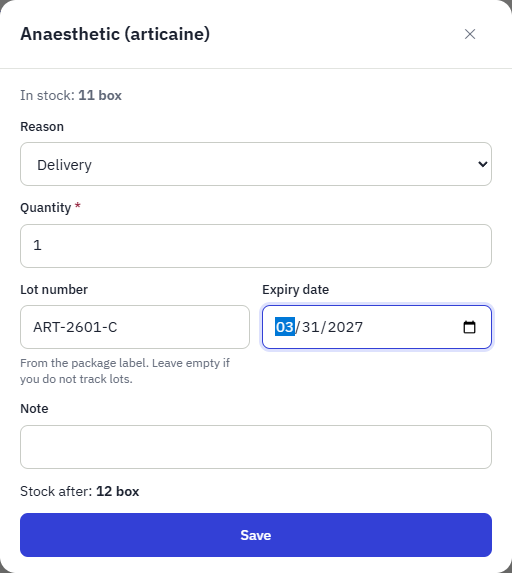
- Lots and expiry: when stock arrives (Use / adjust → Received, receiving an order, or receiving a supply request) you can enter the manufacturer's lot number and the expiry date from the package; the same batch delivered again adds to its lot. Lots on a product shows what is left of each lot, the soonest expiry first. Stock used is taken from the lot that expires first (lots without a date last), and every lot keeps its own history, with its lot number in History, so an implant or an anaesthetic from a recalled batch can be traced. A product with a lot expired or expiring within 60 days gets an Expires or Expired lot tag, is counted in the menu badge, and can be listed with Expired or expiring soon. Write off takes what is left of a lot off stock. Entering a lot is optional: stock without one works as before.
- Supply requests: a doctor or assistant presses Request supplies; whoever manages stock approves or declines, and adds it to stock when it arrives.
- Orders: purchase orders to suppliers, received into stock.
- Suppliers: contact details. A supplier is either the clinic's own or shared with every clinic of the server: the server owner keeps shared suppliers under Owner dashboard → Suppliers and chooses which clinics can use each one, and only the owner can change them. The same table also lists the suppliers each clinic added for itself, already assigned to that clinic (added by the clinic); the owner can edit or archive those too, and they stay that clinic's own, but the owner can also link them to other clinics, which then see (Shared) and order from them without changing them. Unticking the clinic that added a supplier takes it away from that clinic: it becomes the owner's own, shared only with the clinics still ticked. A clinic sees (marked Shared) and orders from the suppliers linked to it, and keeps its own products, stock and orders.
- History: every movement in and out.
Lab work and imaging
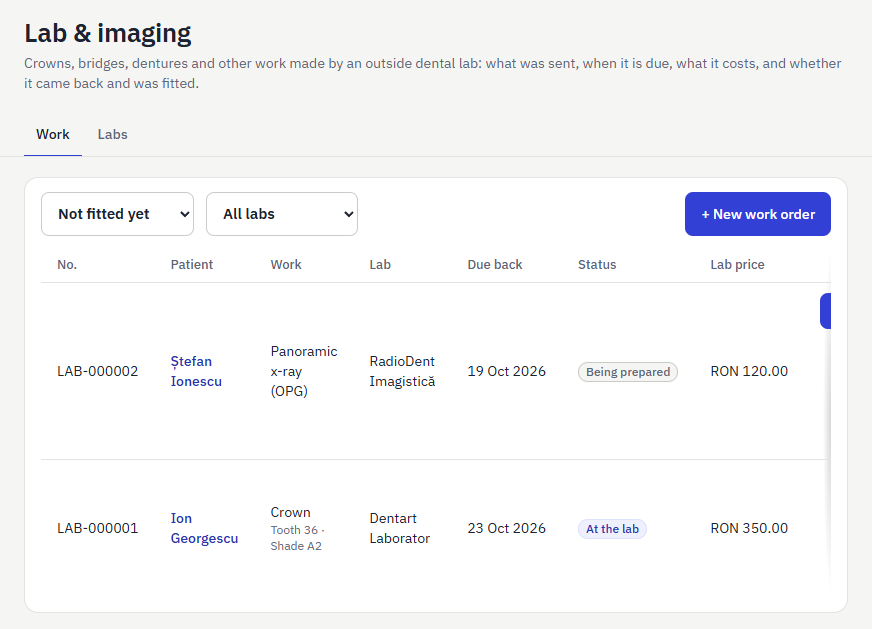
An outside dental lab makes things for the clinic, an outside imaging centre takes x-rays and scans and sends the pictures back; both are managed here. For work made by a dental lab: crowns, bridges, veneers, inlays, dentures, implant prostheses, night guards, aligners and repairs. Lab work in the menu (doctors, assistants and administrators) lists the clinic's work orders; the number badge counts the ones that are overdue. A patient's own work is on the Lab work tab of their file.
- Add the lab: Lab work → Labs → New lab (name, contact person, phone, e-mail, address). A lab you stop using is removed from the list but keeps its name on work already sent.
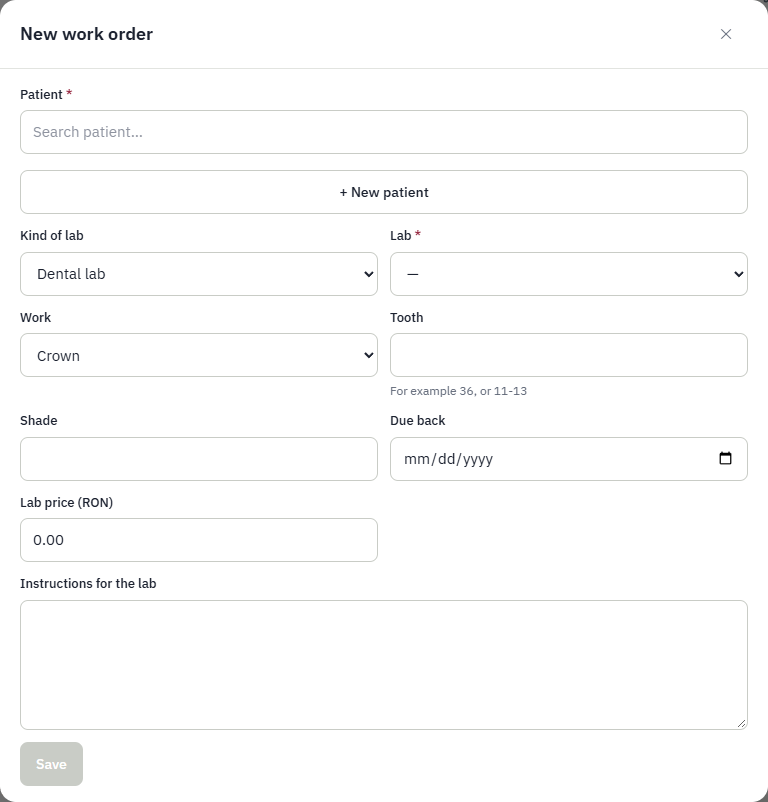
- Prepare: New work order asks for the patient, the lab, the kind of work, the tooth (for example 36 or 11-13), the shade, the date it is due back, what the lab charges and the instructions. Each order gets a number (LAB-000001). The details are encrypted like the rest of the patient's record.
- Send: Print gives the prescription page to send with the work (clinic, patient, work, tooth, shade, due date, instructions). Send to lab records that it went. Until then the order is Being prepared and can be edited or cancelled.
- Receive: when the work is back, press Received and confirm the lab's final price. If it must be redone, Send back returns it to the lab and counts the remake.
- Fit: Fitted closes the order. A fitted or cancelled order cannot be changed.
Imaging centres
Each lab has a kind: Dental lab or Imaging centre. A work order picks the kind first, then only the matching labs and work are offered: crowns, bridges and the like go to dental labs; Periapical x-ray, Panoramic x-ray (OPG), CBCT / 3D scan, Cephalometric x-ray and Other imaging go to imaging centres (the server refuses a mismatch). The steps are the same, with imaging wording: Send to centre, Results back (where the results can be attached at once), Reviewed. Print gives an imaging referral with the reason and what to take. Add results attaches images, PDF, DICOM or ZIP to an order at any time: they are saved in the patient's Files tab, tied to the order (the order shows how many results it has, linking to the Files tab). The list can be filtered by kind of lab.
Lab operators
Someone who works at the outside lab or imaging centre can log in and upload the results themselves. The server owner (or a clinic manager) adds them under Settings → Team with the Lab operator user type, then on Lab work → Labs → Edit of the lab ticks them under People at the lab. A lab operator sees one page, Lab orders: the orders sent to their lab and not finished, with the patient's name, the work, tooth, shade, due date and instructions, but no prices and nothing else of the clinic or its patients. Upload results adds one or several files to an order; they can also download what was uploaded. Each upload tells the people who manage lab work (a notification), and the files appear on the order and in the patient's Files. Once the order is received or cancelled, the lab operator no longer sees it.
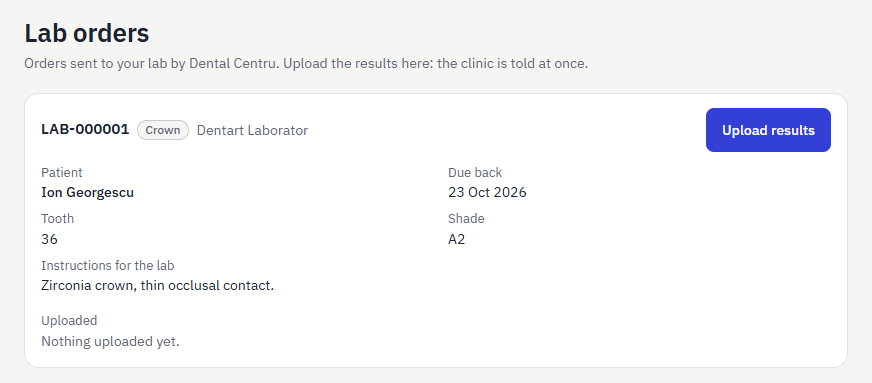
Work sent to the lab whose due date has passed shows Overdue. The filter shows what is not fitted yet (the default), one status, or everything. The price is what the clinic pays the lab; it is not put on the patient's invoice automatically.
Reports
Choose a period, group by day, week or month, and optionally one doctor. Every table can be exported with Export CSV.
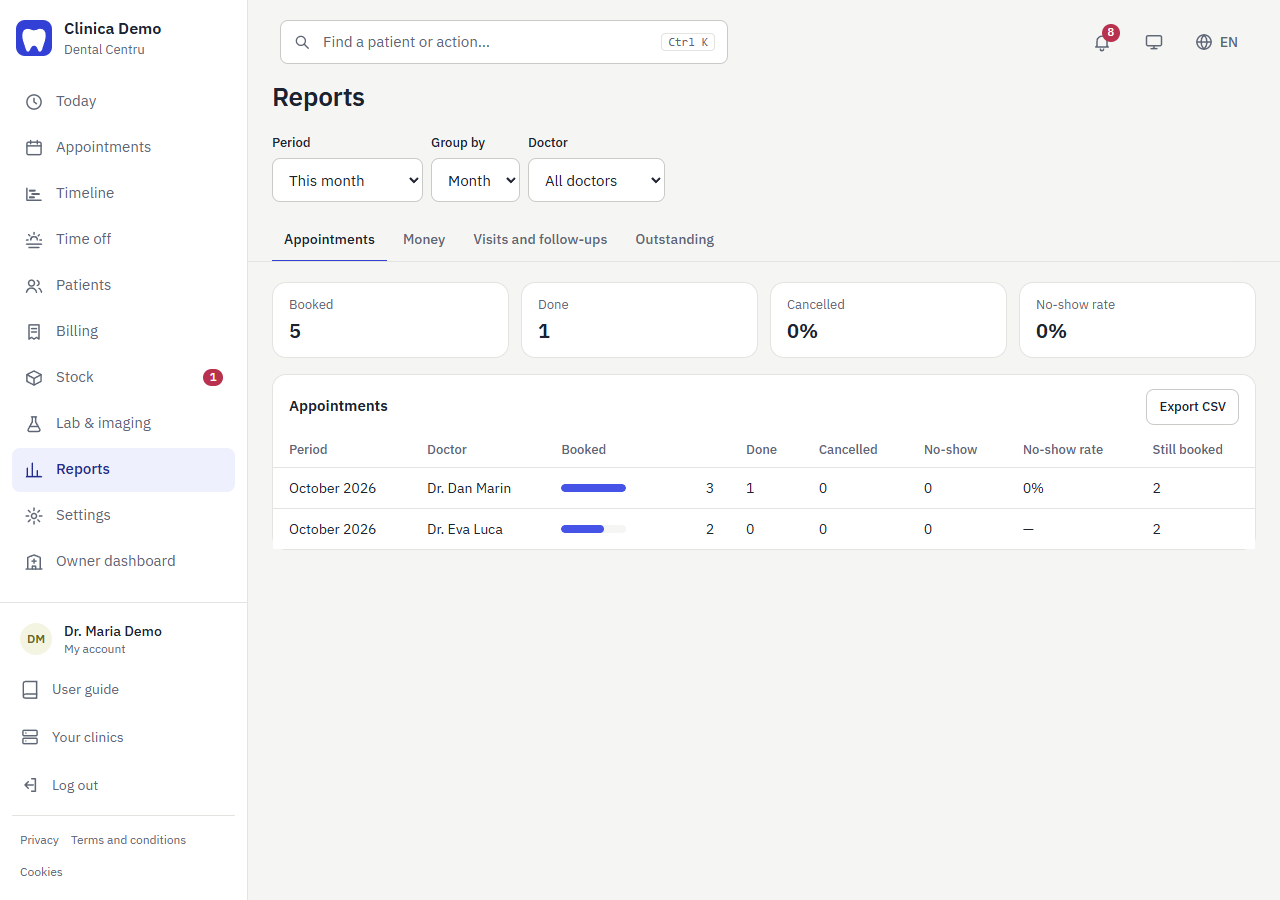
- Appointments: booked, done, cancelled, no-show and no-show rate.
- Money: invoiced and collected, by doctor and payment method.
- Visits and follow-ups: sessions, and follow-ups asked for versus booked.
- Outstanding: unpaid invoices with patient names.
Administrators see everyone, doctors see only their own numbers, and reception sees the outstanding invoices.
Settings
For administrators: the clinic's team, the wording of its documents and its privacy switch, in three tabs: Team, Documents and Privacy (GDPR). The server owner's own pages (dashboard, clinics, everybody on the server, user types) are described in the last bullets.
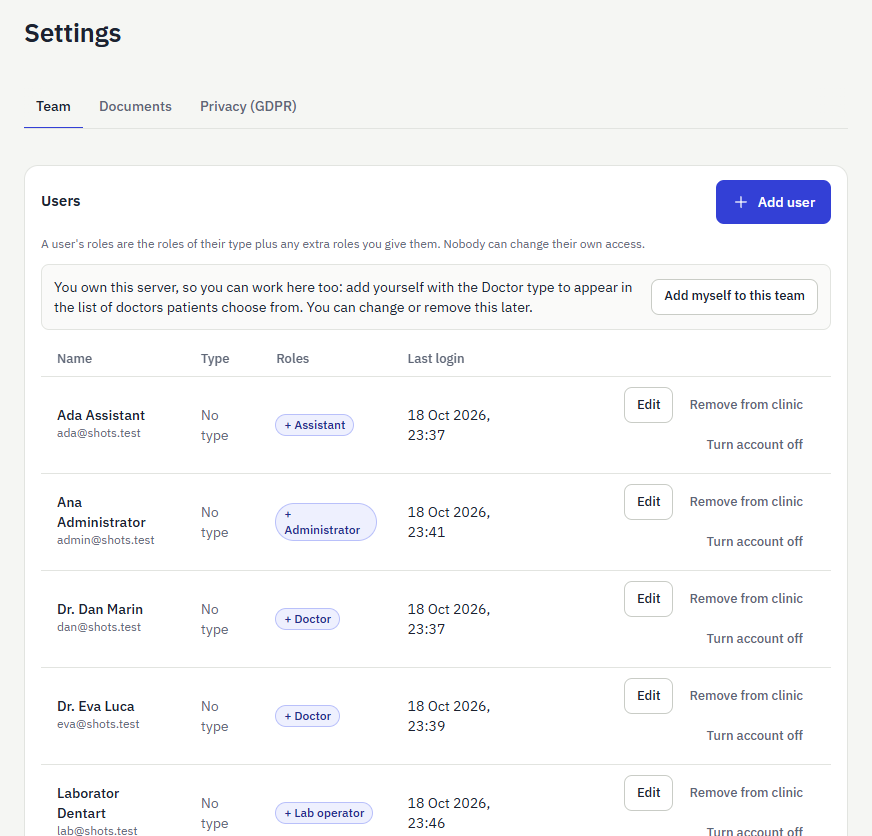
- Users: add a person (an invitation e-mail is sent), edit their type, roles and permissions, Resend invitation, Remove from clinic. Only the server owner can Turn account off for the whole account. The table shows type, roles and last login. Contact details, permissions and login history of colleagues are visible only to people who can manage users; everyone else sees just names and roles (enough to pick a doctor). The five starter user types are shown in the language you use. Anyone who cannot manage anything sees a short no access note on this page.
- Documents (Settings → Documents, administrators): the clinic's consent and letter templates, with ready-made wording to start from in each language. A template has a type, a language, a title and a text; the patient's name, date of birth, date, clinic and doctor are filled in with {{patient}} {{birthDate}} {{date}} {{clinic}} {{doctor}}.
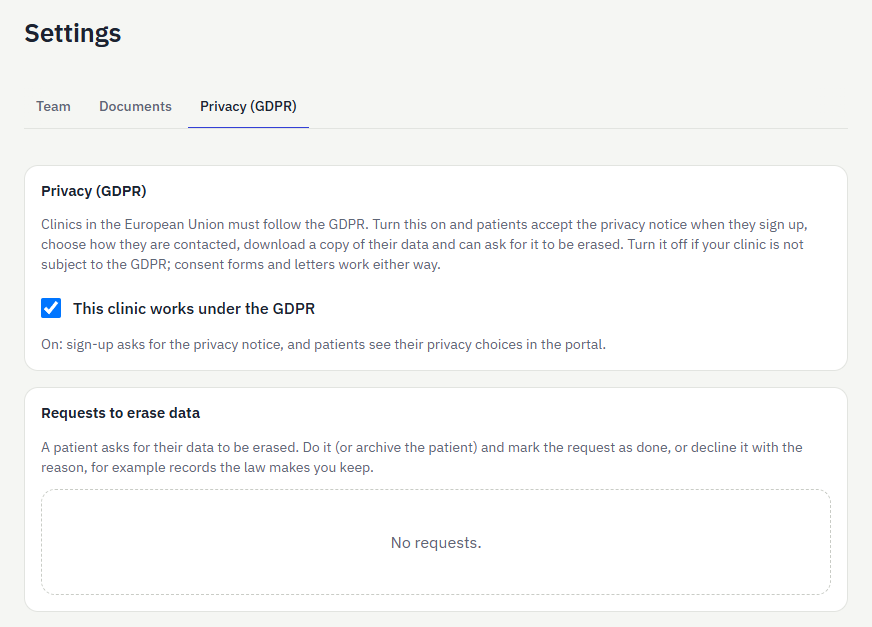
- Privacy (GDPR) (Settings → Privacy (GDPR), administrators): a switch for clinics that must follow the GDPR, on by default. Turn it off if your clinic is not subject to it (for example outside Europe): sign-up then no longer asks for the privacy notice and the portal hides the privacy choices; consent forms and letters keep working, and nothing recorded so far is deleted. While it is on: a patient must tick the privacy notice to create an account, chooses in the portal whether they receive appointment reminders and news (a patient who turns reminders off gets none), can download a copy of their data, and can ask for their data to be erased. Those requests wait on this tab: do what the law allows (erase or archive the patient) and press Mark as done, or Decline with a reason, for example invoices and treatment records that must be kept. The patient sees the answer in the portal. If a server has several clinics, the privacy tick and portal choices appear when at least one of them has the switch on.
- User types (server owner only: Owner dashboard → Staff → User types): the bundles of roles, one set for the whole server, with how many people use each. Add a type or edit one: besides its roles, the dialog lists every permission with As role / Allow / Deny, so a type can be made exactly as wide or narrow as you want (a deny wins). Changing a type shows who is affected first, in which clinic. Clinic administrators pick from these types when they add or edit a person, but cannot change the types.
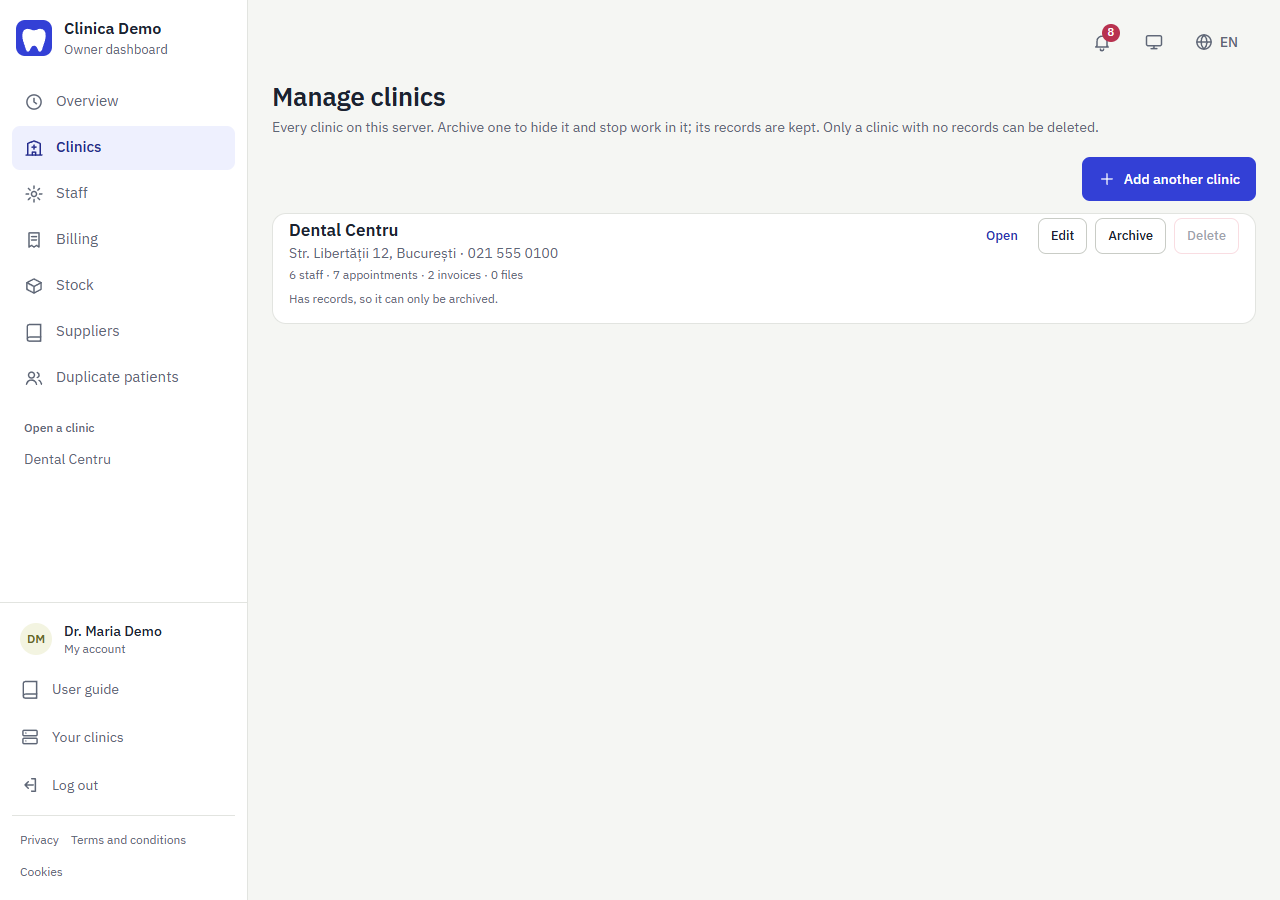
- Clinics (server owner only: Owner dashboard → Clinics): every clinic of the server with its team and record counts. Add another clinic creates one, Edit changes its details: name, legal name, address, phone, contact e-mail, time zone and currency. The legal name and contact e-mail are shown on the Privacy page as the party responsible for patient data and where to send privacy requests, so fill them in; the contact e-mail is also notified when a patient asks for an appointment. Archive hides a clinic: its staff can no longer work in it, patients no longer see it and reminders stop, but every record is kept and Restore brings it back. Delete removes a clinic for good, and is possible only for a clinic with no appointments, invoices or files.
- People (server owner only: Owner dashboard → Staff → People): everybody on the server and the clinics they work in, with their type there. Search by name or e-mail; the list shows 25 people at a time. A person has one login and can work in several clinics, with a different type and working hours in each: Add to a clinic gives someone who already has an account a place in another clinic, with no new invitation. Add a person creates a new account in the clinic you choose, with a type, and e-mails an invitation; the same window shows the type's roles, extra roles and every single permission, as when editing a person; choose No clinic yet to create only the account and link a clinic later with Add to a clinic. Edit, next to a clinic, changes the person's type, extra roles and single permissions there. Edit details corrects the person's name or e-mail (a new e-mail is their login, so they are signed out and, if they have not yet accepted the invitation, get a new one). Turn account off blocks the person in every clinic.
- Stock (server owner only: Owner dashboard → Stock): every clinic's inventory on one page, with the same four tabs as a clinic's Inventory page (Stock, Supply requests, Orders, History), grouped by clinic. The owner can act in any of them, for example approve a supply request or receive an order; each clinic's heading links to its own Inventory page.
- Billing (server owner only: Owner dashboard → Billing): every clinic's invoices and price list on one page, with the same two tabs as a clinic's Billing page, grouped by clinic. Invoices and prices show 25 at a time (Previous / Next), invoices unpaid first by default, and the price list can be searched. The owner can act in any of them, for example record a payment; each clinic's heading links to its own Billing page.
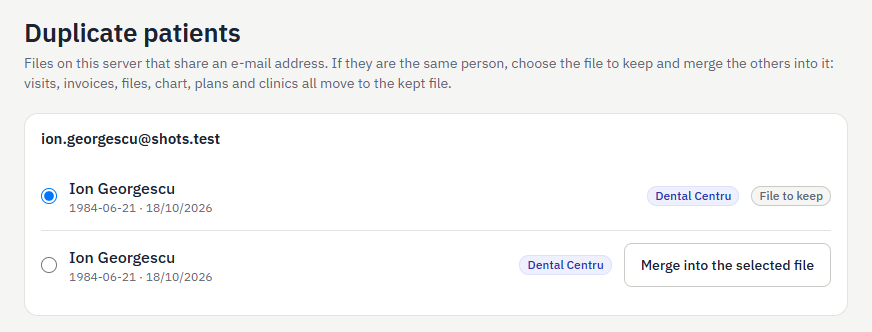
- Duplicate patients (server owner only: Owner dashboard → Duplicate patients): lists files on the server that share an e-mail address. If they are the same person, pick the file to keep and press Merge into the selected file on the other: its visits, invoices, files, tooth chart, plans, clinics and sharing move to the kept file, empty details are filled from it, and it is removed. It cannot be undone, and two files that both have a patient account (or both have a plan in one clinic) cannot be merged. Every merge is written to the audit log of the clinics involved.
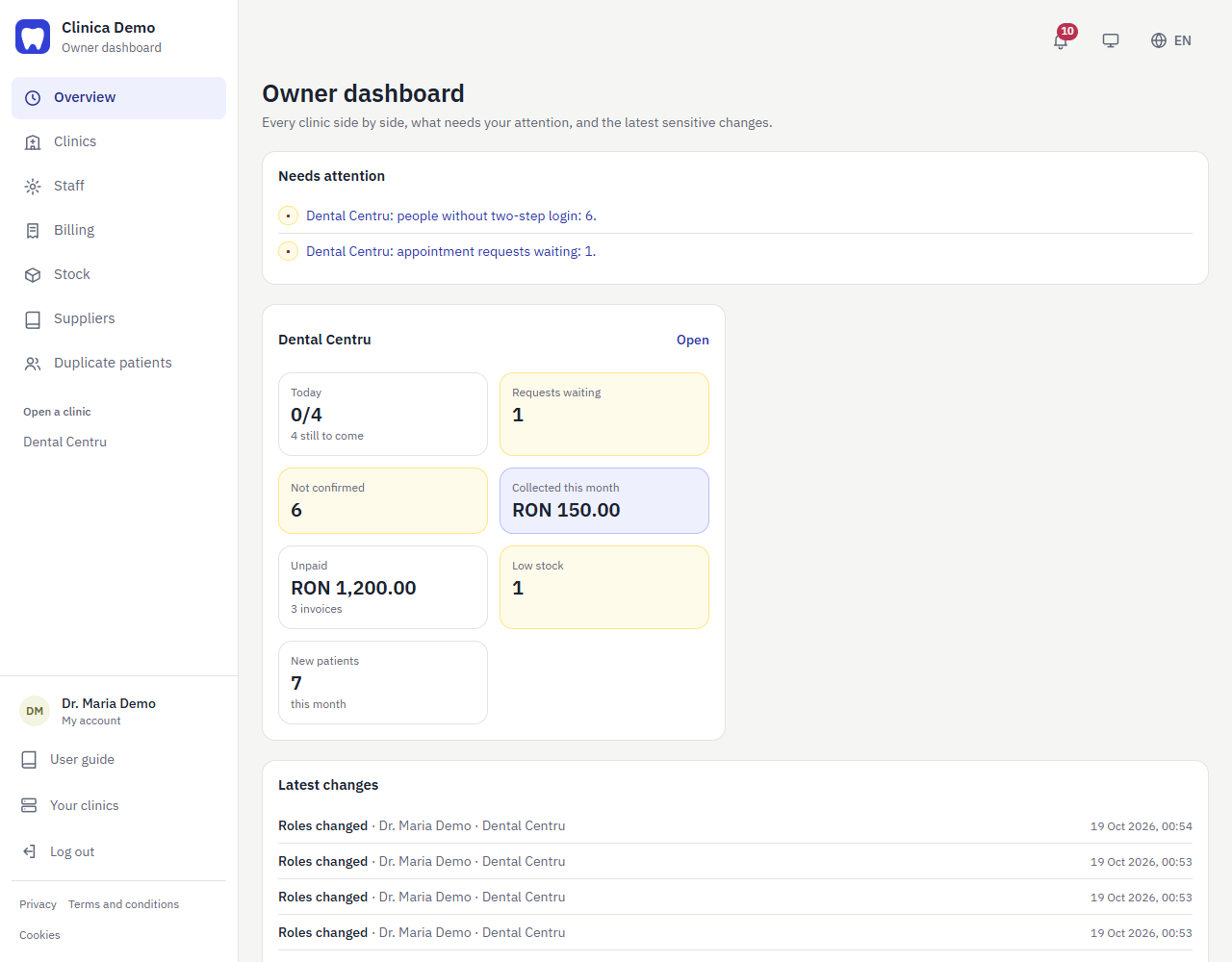
- Owner dashboard (server owner only). It belongs to no clinic: it has its own menu (Overview, Clinics, Staff, Billing, Stock, Suppliers, Duplicate patients, and a list of the clinics to open) and is where the owner lands after logging in. On a phone the menu shows four tabs and More, which holds the rest, the clinics and Log out. Inside a clinic, Owner dashboard in the menu goes back to it. Its overview is the owner's board. Needs attention lists what to look at: a clinic with no administrator, invitations nobody accepted, people without two-step login, past visits not closed and appointment requests waiting. Under it every clinic has a card with the same figures as its Today page, and Latest changes shows the most recent sensitive changes (people added or removed, accounts turned off, shared suppliers, patients assigned, sharing between clinics) with who made them. Opening the board is itself written to the audit log.
Patient portal
A patient with an online account sees only their own data. Patients can create the account themselves from the login screen (New patient? Create an account) or be invited from their file by the clinic.
Staff who are also patients use the same login. They reach their own portal with My patient portal at the bottom of the side menu, and come back with Staff board at the top of the portal.
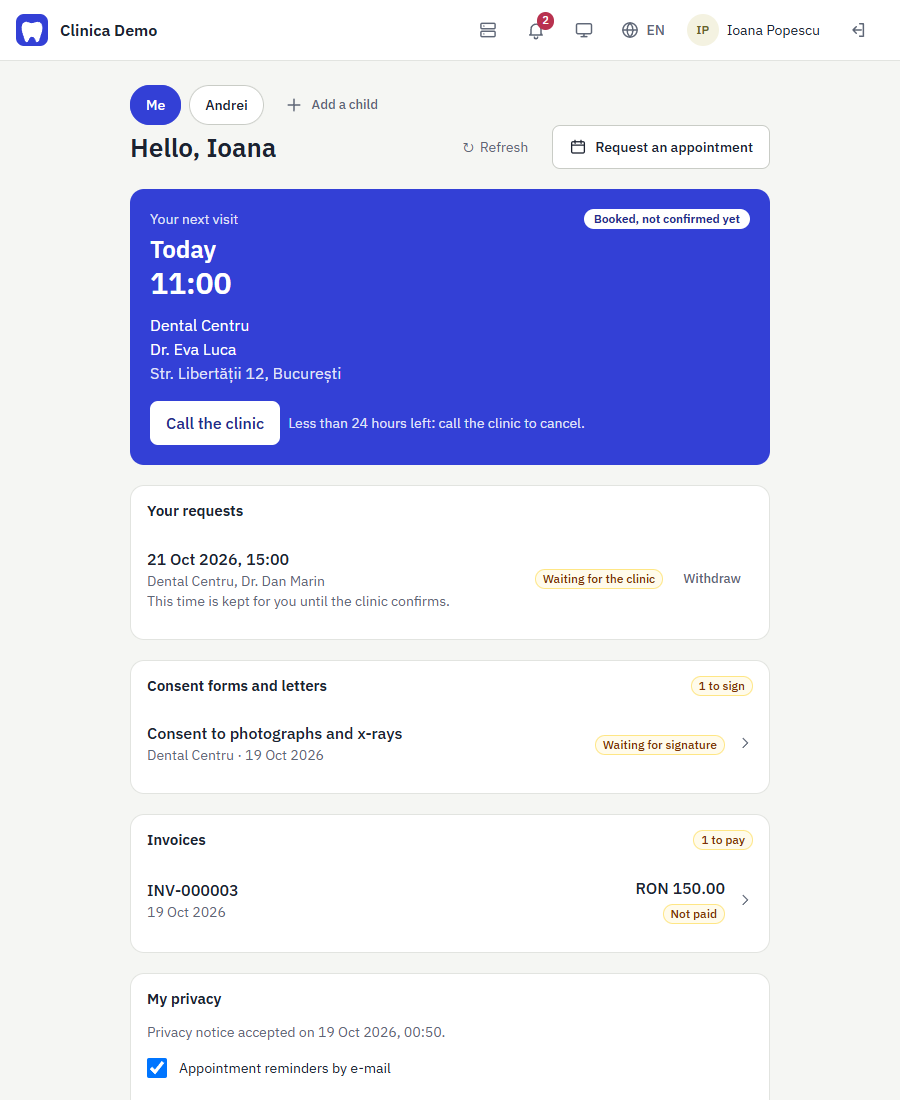
- The next visit shows its status: Confirmed, or Booked, not confirmed yet. If the clinic cancels an upcoming appointment, a red notice says so for 7 days (the patient can close it with ✕ earlier), and the patient can request a new time. A patient who cancels an appointment themselves gets no such notice.
- Upcoming appointments, their requests and how they ended, invoices, and visit history.
- Invoice details: tap an invoice to see what was billed, what was paid and what is still due.
- The page updates itself when the clinic changes something (a moved appointment, a new invoice); Refresh fetches it again at once.
- Visit details: in History, press View details on a finished visit to open its own page: the date, time, clinic and doctor; What was done (the doctor's summary and results); Procedures and costs with quantity, price and total; the visit's invoices with what is paid and still due (View invoice); the files the clinic shared for the visit; the tooth chart changes; and the follow-up, with Book follow-up when it is not booked yet. The costs are what the clinic recorded for the visit; the invoice shows what was billed and paid. Nothing private is shown (the doctor's own notes stay with the clinic).
- Cancel an own appointment online until a set number of hours before it (24 by default). Closer than that, the patient phones the clinic.
- Request an appointment: choose the clinic, a doctor (or Any doctor), a day and one of the free times.
- Follow-up visits: when the doctor recommended or required a follow-up that nobody has booked yet, it is listed on the home page with its date. Book follow-up opens the same request with the clinic and doctor already chosen, in the week of that date. The clinic confirms it like any request.
- Consent forms and letters: documents the clinic prepared are listed under Consent forms and letters, with a to sign count while one waits. Open one to read it and sign with a finger on the phone (a parent signing for a child adds their name); a signed consent can be withdrawn here, and any document can be printed.
- My privacy (shown when a clinic of the server works under the GDPR): accept the privacy notice if you have not, choose whether to receive appointment reminders and news by e-mail, Download my data (a file with your details, appointments, invoices and documents) or Ask to erase my data. The clinic answers in the same box; some records, such as invoices and treatment records, must be kept by law.
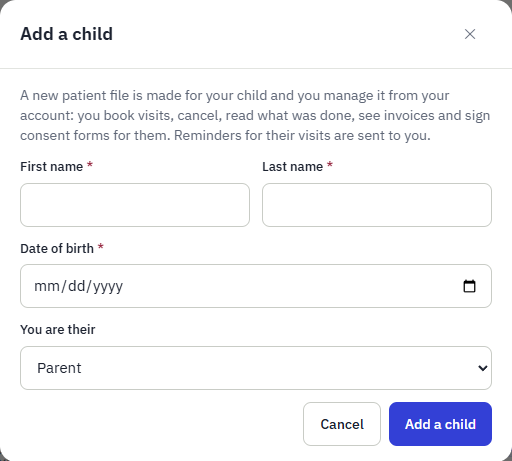
- Children and other files you manage: Add a child at the top of the portal asks for the child's name, date of birth and your relation, and creates their patient file (on a server with one clinic it belongs to that clinic at once). With a child added, the pills at the top (Me, the child's name) choose whose records the whole portal shows; a blue notice says whose records are on screen, with Stop managing to let go of the file (it stays with the clinic). Everything works for the child as for you: appointments and requests, visit records, invoices, consent forms (you sign for them and can add your name), privacy choices and data download. A clinic can also link an existing child file to your account. The choice lasts until the page is reloaded.
- Sharing between your clinics (when you are in more than one clinic, or a clinic has asked): each clinic keeps its own records and shows nothing to another unless you allow it. For each clinic you choose which other clinics it may see Files and Visit results from, and you can take that back at any time. When a clinic asks to see your files or visit results, the request is listed here (you get a notification and, if the clinic has your e-mail, an e-mail that only says which clinic asked and for what): tick the clinics to share from and press Share, or Decline.
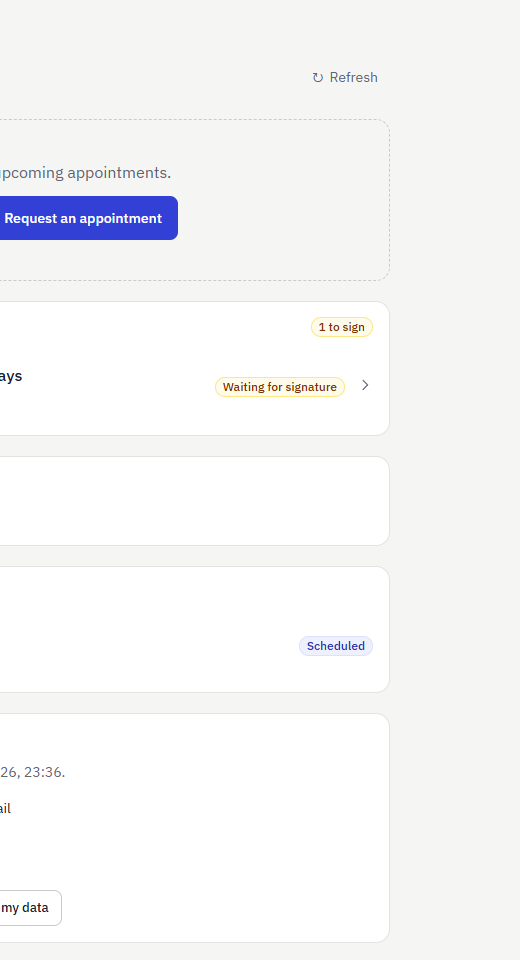
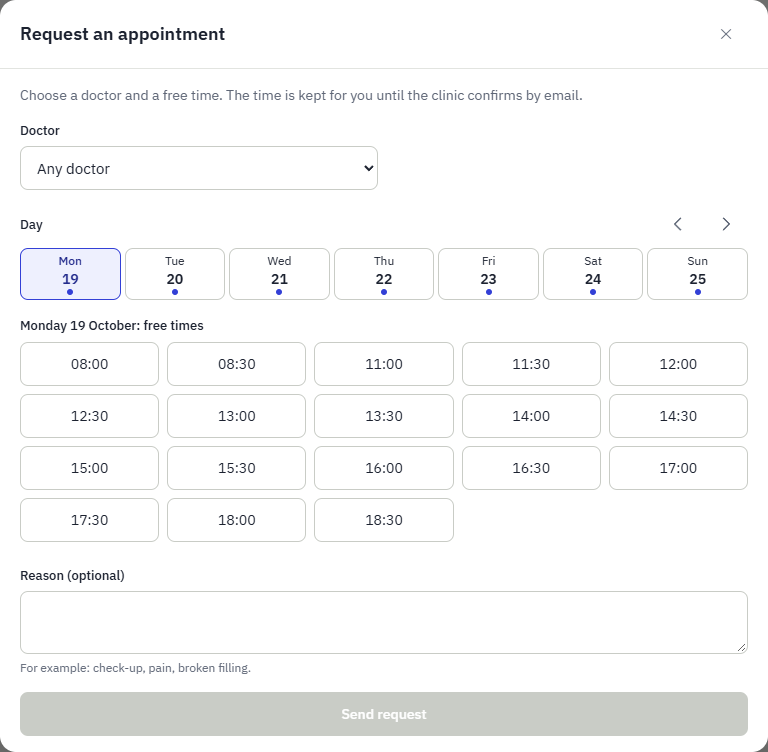
A request must start a minimum number of hours ahead (2 by default) and holds its time until reception books or declines it, so nobody else can take it. The patient is e-mailed either way. Each patient can have only a limited number of open requests. Doctors without working hours cannot be requested online.
A typical day: from new patient to invoice
This is the path that was exercised end to end in the test run. Each step names the screen to use.
- Register (Reception) — Patients → New patient. Enter name and contact details; the doctor adds allergies later.
- Book (Reception) — on the patient page press Book appointment, pick doctor, date and a free time.
- Confirm — open the appointment on Appointments and press Confirm when the patient confirms.
- Treat (Doctor) — on the day, Today → Start session; at the end Close session with what was done, tooth chart changes and any follow-up.
- Invoice (Reception) — New invoice or Invoice done items; later record the payment.
- Follow up — a required follow-up shows on Today under Follow-ups to book; press Book to schedule the next visit.
- Review (Administrator) — Reports shows bookings, money and outstanding invoices.
Security and privacy
- Every personal and medical patient field is encrypted (AES-256-GCM) before it is stored; searching uses blind indexes. Passwords use Argon2.
- Logins use short-lived access tokens with rotating refresh tokens; reuse of an old token ends the session. Optional two-step login; lockout after repeated failures.
- Every action is checked on the server against the permissions above; hiding a button is never the only protection.
- An append-only audit log records who viewed or changed what, never patient content.
- Staff of one clinic cannot reach another clinic's data; removing a staff member takes effect immediately.
- The clinic administrator must back up the master key separately from database backups: without it the data cannot be read.
- Legal pages: Privacy, Terms and conditions and Cookies are linked at the foot of the sign-in screens, the patient account and the menu, in the reader's language. The system uses no tracking or advertising cookies; it keeps only a sign-in token and the chosen language in the browser. The clinic remains responsible for its patients' data: its legal name and contact e-mail (set by the owner on the Clinics page) are shown on the Privacy page for signed-in staff and patients.
- GDPR, switchable per clinic. A clinic that must follow the GDPR keeps it on (the default): patients accept the privacy notice at sign-up, choose how they are contacted, download their data and ask for erasure; a clinic outside Europe turns it off in Settings → Privacy (GDPR). Signed consents are encrypted with the text signed, and viewing documents is written to the audit log.